


 387
387
This article explains how to allow officers to sign up for extra overtime (OT) shifts even when they already have scheduled activities such as on-call assignments, K9 maintenance, or other logged time during the same time period. This behavior is controlled by the Prevent Shift Conflicts setting in Site Settings.
Prerequisites
-
Administrator access to the Pace Scheduler Admin Panel.
-
Permission to modify Site Settings.
Before you begin
-
Confirm that officers are unable to sign up for extra OT or extra duty shifts because the system is detecting a schedule conflict.
-
Make sure there is at least one example officer who has another scheduled item (for example, on-call, K9 maintenance, or other logged time) during the extra shift so you can test the change.
Steps
-
Log in to Pace Scheduler.
-
Go to Admin Panel > Site Settings.
-
Locate the setting Prevent Shift Conflicts.
-
Disable Prevent Shift Conflicts.
-
Save your changes, if prompted.
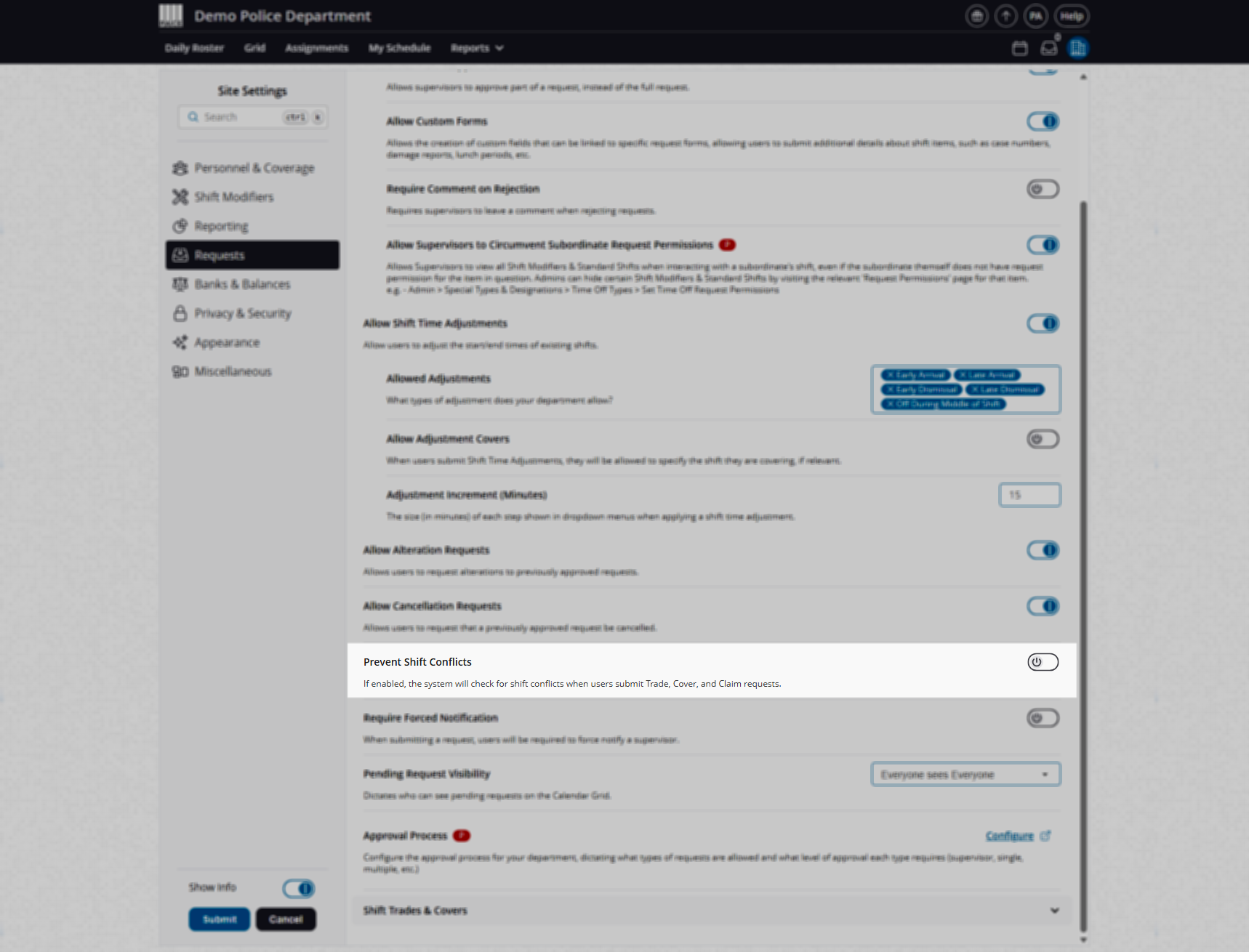
Confirm it worked
-
Have an officer who previously could not sign up for the extra OT shift attempt to sign up again for the same shift.
-
Confirm that the officer can now complete the sign-up, even though they have another scheduled activity during that time.
If the sign-up completes successfully, the configuration change is working as expected.
Troubleshooting
-
Officers still see a conflict message when signing up for extra OT shifts
-
Double-check that Prevent Shift Conflicts is set to off.
-
Make sure your changes were saved successfully.
-
-
You cannot see the “Prevent Shift Conflicts” setting
-
Confirm that you are in Admin Panel > Site Settings.
-
FAQ
What does the “Prevent Shift Conflicts” setting do?
When enabled, it blocks officers from being scheduled or signing up for shifts if they already have another scheduled activity at the same time. Disabling it allows sign-ups even when there is another scheduled shift during that time.
Can I turn this setting back on later?
Yes. You can return to Admin Panel > Site Settings, re-enable Prevent Shift Conflicts, and save your changes at any time.
Does this only affect extra OT shifts?
This setting controls whether conflicts are blocked based on existing scheduled activities. If you rely heavily on conflict prevention for regular scheduling, review your schedule behavior carefully after changing this setting.

