


 286
286
Use this checklist to prepare Pace Scheduler for payroll export. Completing these steps ensures your pay period data, payroll codes, and exports align with your agency’s payroll system.
Once Pace creates your CSV Payroll Export, it will serve as a starting point that must be adjusted to match your exact payroll codes before it becomes operational.
Applies to
Roles: Admin, Payroll Coordinator
Prerequisites:
-
Payroll setup access in Pace Scheduler
-
Knowledge of your agency’s payroll system configuration (e.g., ADP, Paycom, Tyler, Paychex, BS&A, Paylocity)
Before you begin
-
Confirm your payroll system and pay period settings.
-
Collect your agency’s official payroll import template or file specification.
-
Have your payroll code list ready (Time Off, Overtime, Comp Time, and Special Assignments).
Steps
1. Confirm Your Payroll Target
-
Identify your payroll system (e.g., ADP, Tyler, Paycom, Paychex, BS&A, Paylocity).
-
Determine whether you will import hours via file or enter hours manually into your payroll software.
-
If importing, send a sample import template or file specification to Pace Scheduler Support.
-
Note any special payroll run requirements (for example, “single citywide payroll” vs. “per department”).
-
Expected result: Pace can format your export file to match your payroll system.
-
2. Gather Your Payroll Codes
Work with Payroll to compile the official codes for each of the following categories:
Time Off Codes: Vacation, Sick, Personal, Holiday, Jury Duty, Military Leave
Overtime Codes: OT1.0, OT1.5, Double Time, Callout Pay
Comp Time Codes: Comp Earned, Comp Used
Special Assignment Codes: Training Pay, Court Time, Range Time, Administrative Duty
Tip: Ask your payroll processor for the codes displayed on employee pay stubs or within your payroll import template.
3. Enter Payroll Codes in Pace
-
Go to Admin Panel > Shift Modifiers.
-
Select the relevant tab: Time Off Types, Overtime Types, or Special Assignments.
-
Click Edit beside each item.
-
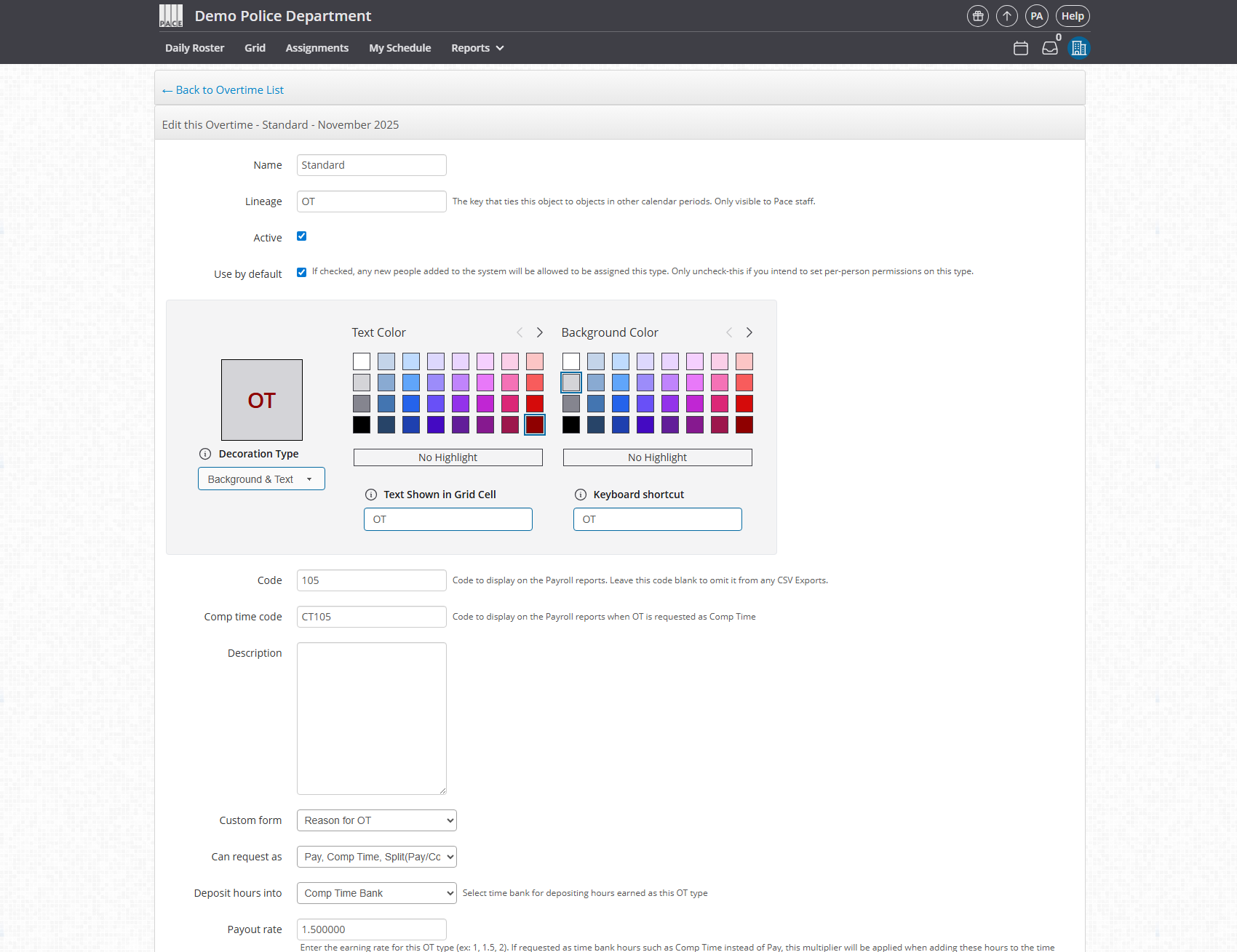
In the Code field, enter the matching payroll code exactly as it appears in your payroll system.
-
Click Save.
Note: If an Overtime Type can also be banked as Comp Time, enter both the overtime and comp time codes.
4. Review Your CSV Payroll Export
After Pace sets up your initial CSV Payroll Export, review it and customize as needed.
-
Go to the Report tab at the top.
-
Go to Totals & Custom Exports.
-
Filter any date range you want to review.
-
Click the CSV Export button to download the data file.
-
This file is used to upload hours to your payroll system for that period.
Note: The export provided by Pace is a baseline template. You must tweak the payroll codes and structure to exactly match your agency’s payroll requirements before using it live. We will help you with this. We just need to know which items need to be adjusted.
5. Update Pay Codes and Payroll IDs
To make your export fully operational:
Update Payroll Codes:
-
Go to Admin Panel > Shifts & Modifiers.
-
Select the relevant tab: Time Off Types, Overtime Types, or Special Assignments.
-
Click Edit beside each item.
-
For each type, ensure the CODE field matches your payroll system’s code.
-
Leave the CODE field blank for any type that should not be included in the export.
Set Payroll IDs for Employees:
-
Go to Admin Panel > Employees > Users.
-
Click Edit beside each employee.
-
Scroll to the bottom and enter their Payroll ID (this must match your payroll system’s employee identifier).
-
Click Save.
Warning: Payroll IDs are required for each employee to ensure the export links correctly to your payroll system.
Note: Depending on your payroll system, there may be additional or fewer configuration steps than those listed here. Refer to your initial Payroll Export Setup support ticket for any system-specific instructions. If you do not see payroll ID at the bottom of the employee's profile, please contact Pace Scheduler support to have it added.
6. Generate a Test Payroll Export
-
Go to Report > Totals & Custom Export.
-
Download the newly created CSV Export and review the file with your Payroll department.
-
Confirm that all column headers, codes, and totals match your import template.
-
Adjust any missing or incorrect codes before your first live export.
Tip: If you need to modify items such as the “Regular Hours” code used in the export, email Pace Support for assistance.
Defining Overtime vs. Comp Time Rules
Work with Payroll to clarify when employees should:
-
Be paid overtime, or
-
Bank time as comp time.
Ensure the corresponding codes are entered and active in Pace Scheduler.
Confirm Data Retention & Compliance
-
Review your agency’s data retention policy (typically 7 or more years for public sector).
-
Inform Pace Support if extended retention or special handling is required for payroll reports or exports.
Establish Your Payroll Cycle Workflow
Set a clear workflow for each pay period:
-
Confirm all supervisor approvals are complete.
-
Run validation reports (Time Off, Overtime, Comp Time).
-
Generate and review your payroll export.
-
Upload the file to your payroll system.
Tip: Establish a consistent cut-off day and time for supervisor approvals to prevent late changes.
Confirm it worked
-
The payroll export downloads successfully.
-
All payroll codes and hours match your payroll import template.
-
Payroll IDs correctly align employees between systems.
-
No errors appear during file upload to Payroll.
Troubleshooting
Issue: “Invalid code” in export
Cause: Payroll code mismatch
Fix: Verify codes in Admin > Shift Modifiers
Issue: Missing column in export
Cause: Incorrect file format
Fix: Share the latest import specification with Pace Support
Issue: Overtime missing from export
Cause: Incorrect pay type setup
Fix: Recheck Overtime Type code and add if missing or incorrect
Issue: Comp Time not accruing
Cause: Missing Comp Time code
Fix: Add Comp Time code "CT Code" on the edit page for the specific Overtime Type
Issue: Employee missing from export
Cause: Missing Payroll ID
Fix: Edit employee profile and add Payroll ID
Issue: Pay period off by one day
Cause: Misaligned cut-off date
Fix: Reach out to Pace Scheduler Support for assistance
FAQ
Q: Can we have different payroll exports per department?
A: Yes. Pace can create department-level exports if your payroll system supports it.
Q: What if our payroll system uses multiple codes for the same leave type?
A: Add separate Time Off Types for each code to ensure proper mapping.
Q: Can we test exports without closing the pay period?
A: Yes. Test exports can be generated anytime for verification.
Q: Do comp time balances update automatically?
A: Yes, once comp time earning and usage codes are linked correctly.
Q: Who do I contact if I need my export adjusted (for example, Regular Hours code)?
A: Email your Pace contact or reply to your Payroll Export Setup ticket for assistance.

