


This article shows you how to cancel a time off request, whether it is still waiting for approval or has already been approved. It also shows you how to change the type of leave on an approved request, for example from Vacation to Sick Leave.
It is written for officers and other employees who request their own time off. The steps use the website, not the mobile app.
Prerequisites
- You can sign in to Pace Scheduler.
- You have a time off request on your own schedule.
- To cancel or change a request that is already approved, your agency must have turned that option on for the type of leave you used. If it is off, you will not see the link in the steps below. See Troubleshooting.
Before you begin
- A pending request is one your supervisor has not answered yet. On the Grid it shows as a striped box with a yellow P. You can cancel it yourself, right away. Nobody has to approve that.
- An approved request shows the leave on your schedule, for example VAC. You cannot remove it yourself. You send a cancellation request, and a supervisor approves or rejects it.
- An alteration changes the type of leave only. It does not change the day or the hours.
Important: To move approved time off to a different day, or to change the hours, cancel the request and then submit a new one for the right day and hours.
Steps
Cancel a request that is still pending
- Click Grid in the menu at the top of the page.
- Find your name, then find the day with the yellow P.

- Right-click that day. A panel opens on the right side of the page.
- Click the red link that starts with Cancel, for example Cancel Time Off (Vacation) Request.
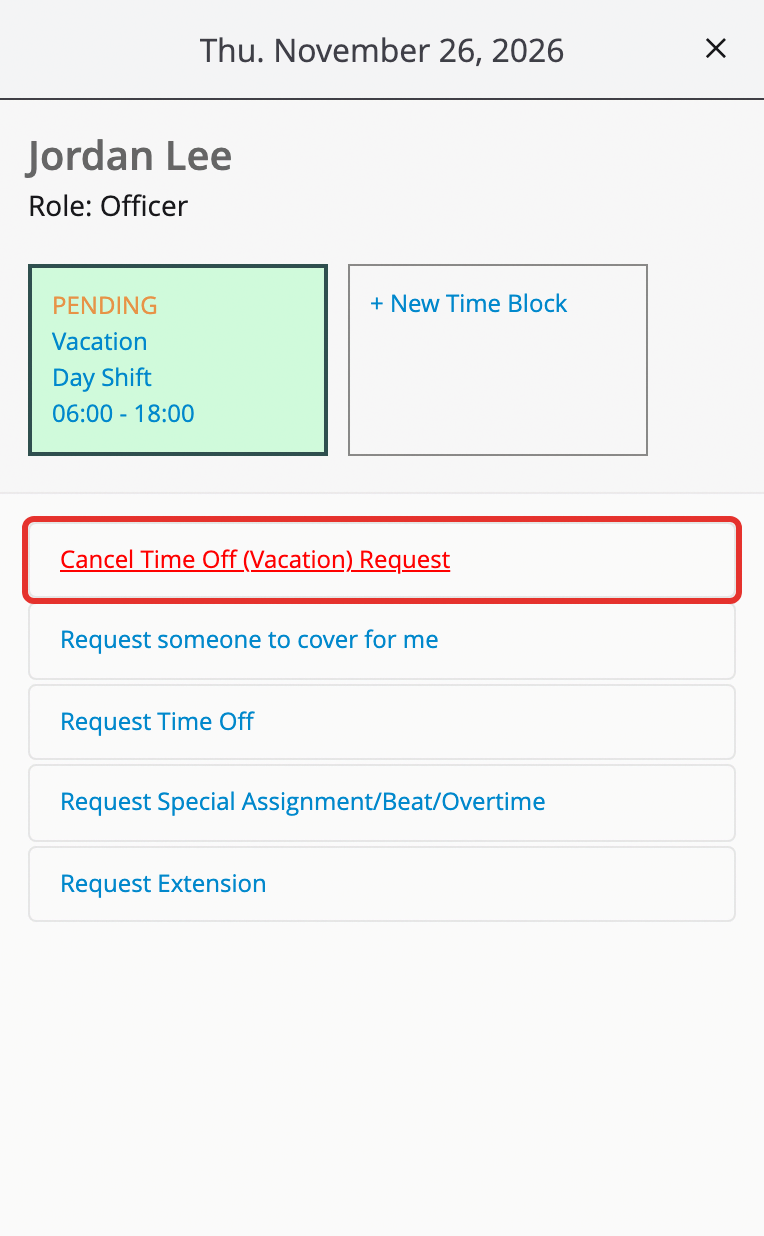
- Check the box that says Confirm cancelling Time Off (Vacation) request.
- Click Confirm cancelling.
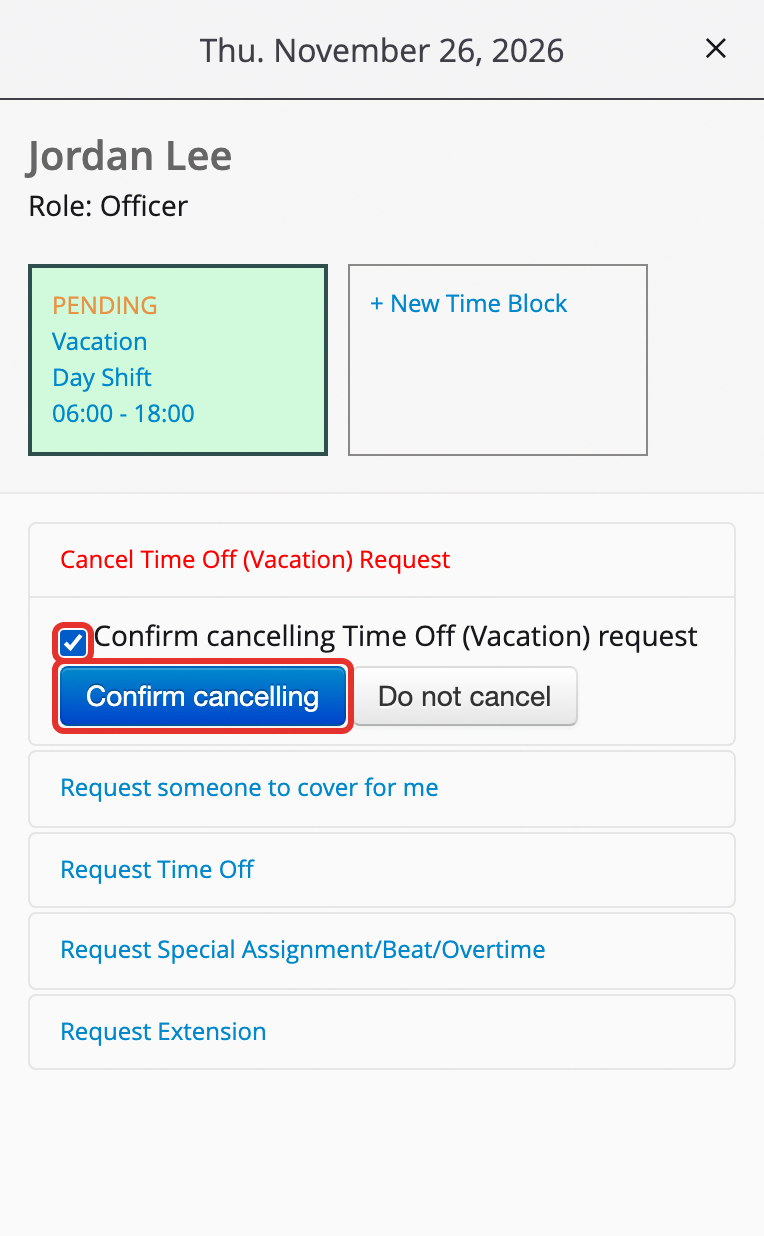
The request is canceled right away. The P goes away and your regular shift is back on the Grid.
Cancel a request that is already approved
- Click Grid in the menu at the top of the page.
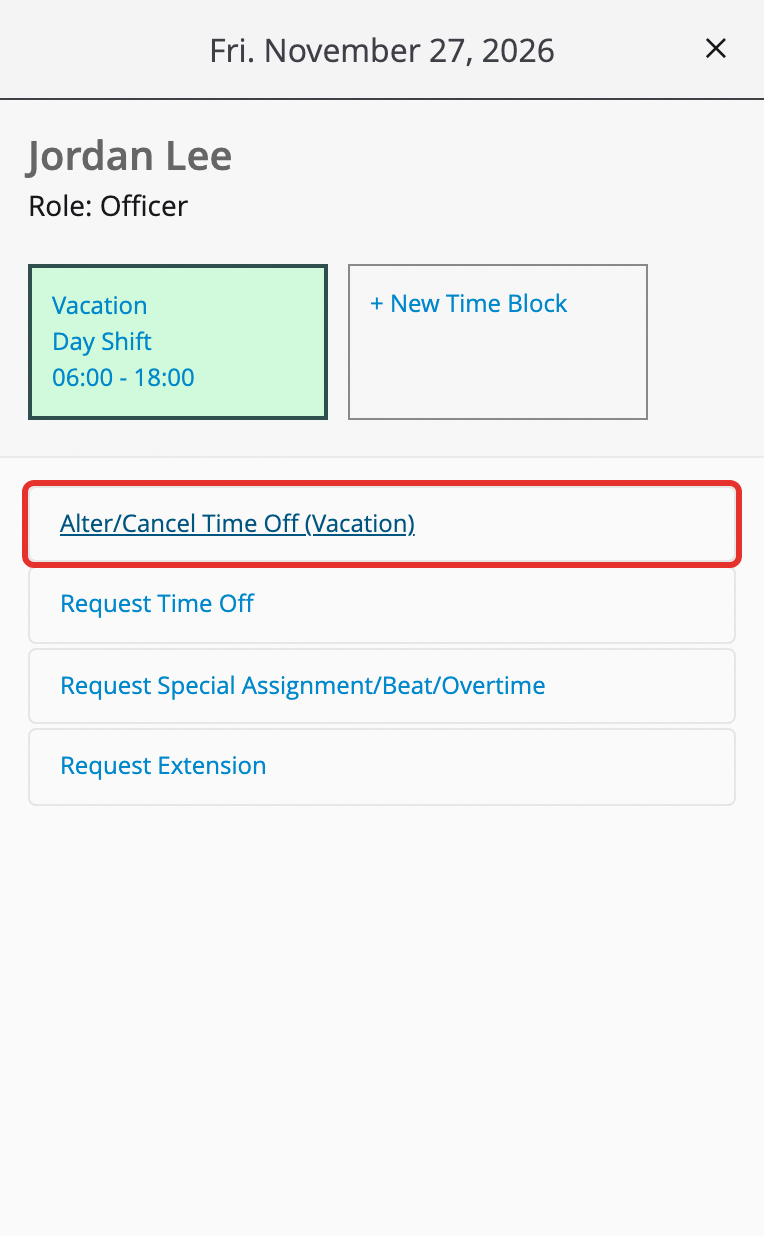
- Right-click the day with your approved time off.
- Click the link that starts with Alter/Cancel, for example Alter/Cancel Time Off (Vacation). Depending on how your agency set it up, the link may say only Cancel or only Alter.
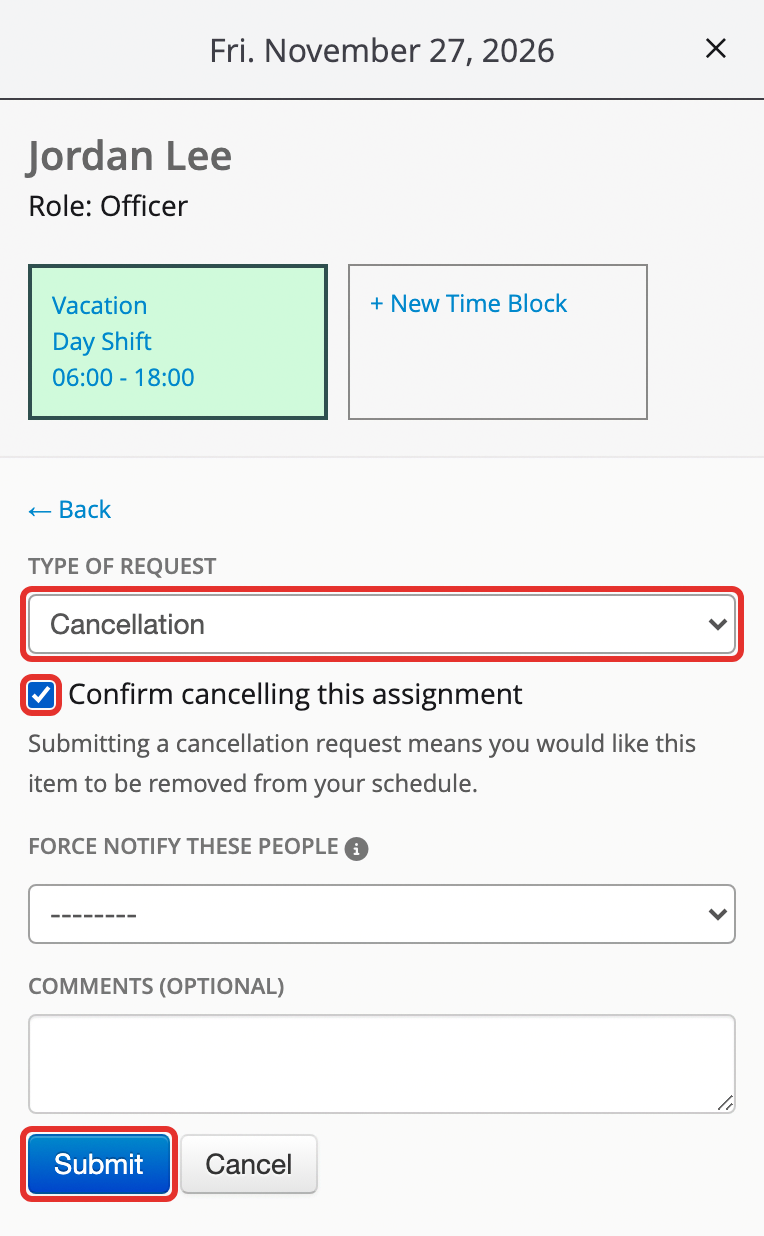
- Under Type of request, choose Cancellation.
- Check the box that says Confirm cancelling this assignment.
- Optional: under Force notify these people, pick a supervisor you want to be sure gets notified. Add a note under Comments if you want to explain why.
- Click Submit.
Your cancellation request now waits for a supervisor. Until they answer, the day shows a yellow P on the Grid.

Important: Your time off is still approved until a supervisor approves the cancellation. Do not plan to work that day until the P is gone and your regular shift is back.
Change the type of leave on an approved request
- Click Grid in the menu at the top of the page.
- Right-click the day with your approved time off.
- Click the link that starts with Alter/Cancel.
- Under Type of request, choose Alteration.
- Under Type to change to, choose the type of leave you want, for example Sick Leave. The Hour Balances box shows what your balances will be after the change.
- Click Submit.
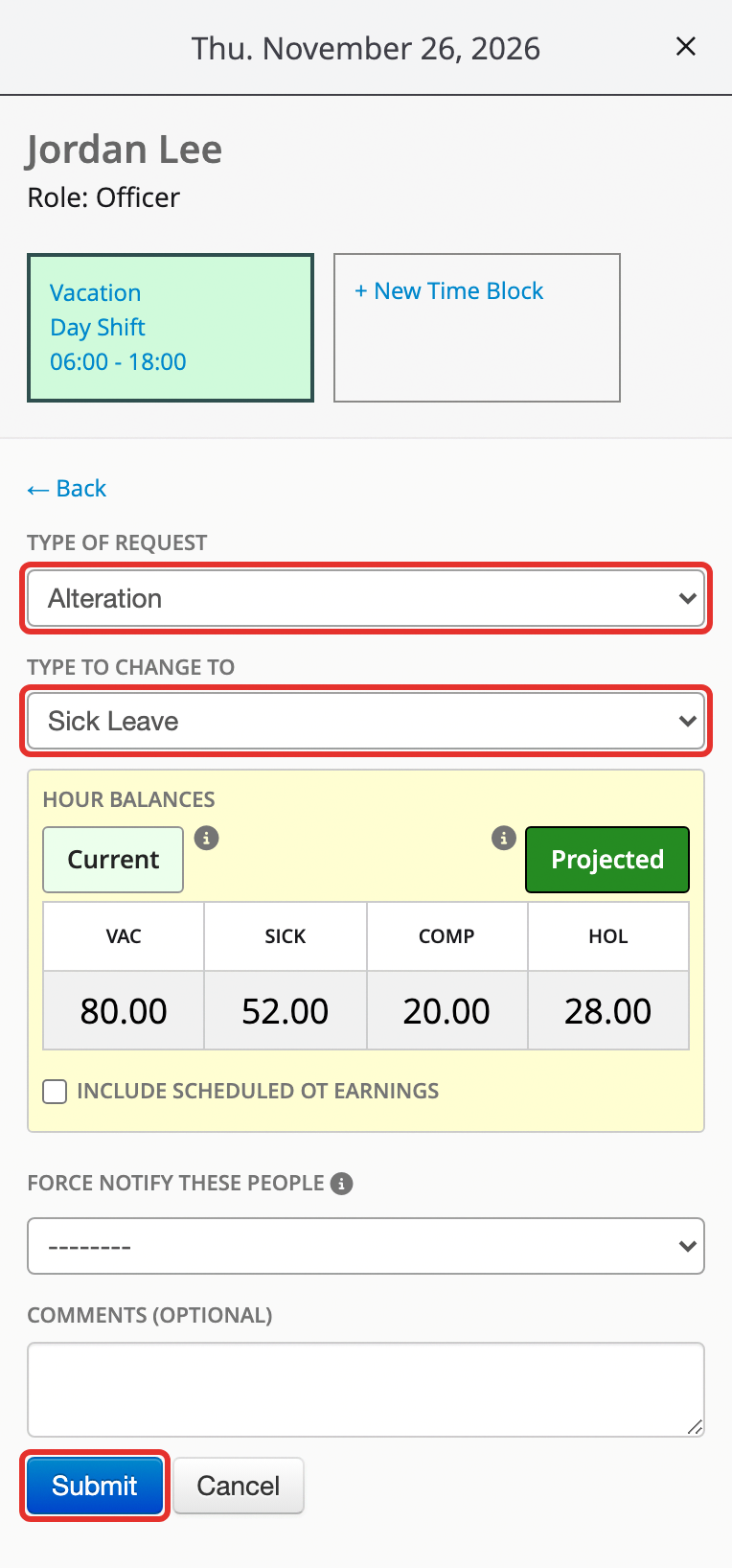
The change waits for a supervisor to approve it, the same way a cancellation does.
Confirm it worked
- Pending request you canceled: the P is gone and your regular shift shows on the Grid again.
- Cancellation request you sent: the day shows a P while it waits. After a supervisor approves it, your regular shift is back.

- Alteration you sent: after a supervisor approves it, the day shows the new type of leave.
Troubleshooting
- You don't see an Alter/Cancel link on an approved day: your agency has not turned that option on for that type of leave, or the deadline to ask has passed. Some agencies only allow these requests a set number of hours before the shift starts. Ask your supervisor to remove the time off for you.
- You see Alter but not Cancel (or the other way around): your agency turned on only one of the two for that type of leave.
- The Alter/Cancel link went away after you used it: you already have a cancellation or alteration waiting on that day. You can only have one at a time.
- You sent a cancellation request by mistake: right-click the day and click the red Cancel RESCIND REQUEST link, then confirm. Your time off stays approved.
- You want to undo a trade or a cover: these steps only work for time off. Ask your supervisor to change the schedule back.
For site administrators: to let employees alter or cancel approved time off, open the Admin menu, go to Shift Modifiers, then Time Off Types, and edit the type. Check Modify requests enabled (alterations) and Rescind requests enabled (cancellations). Each has an optional box for how many hours before the shift the request must be sent. These are set one type at a time.
FAQ
Do I get my hours back?
Yes. When a pending request is canceled, or a supervisor approves your cancellation, the hours are no longer taken from your time bank.
Who approves my cancellation request?
Any supervisor who can approve your requests. Force notify these people only chooses who gets a notification. It does not choose who approves.
What if my supervisor rejects the cancellation?
Your time off stays approved, exactly as it was.
Can I change the day or the hours without canceling?
No. An alteration only changes the type of leave. Cancel the request, then submit a new one.

