


This article shows you how to give someone view-only access to the schedule. They can sign in and look at the schedule, but they cannot change anything. This is common for dispatch centers, courts, command staff, and people from other agencies.
It is written for site administrators.
Prerequisites
- You are a site administrator.
- You have an email address for the person. Each person needs their own email address to sign in.
Before you begin
- There is no "view-only" switch. In Pace, a user is view-only when they have no permissions: they are not an admin, no boxes are checked for them on Employee Permissions, and they are not a supervisor in any Supervisor Rule.
- A new user starts with no permissions. So for a new person, you only need to add them and leave everything unchecked.
- The Hidden status keeps a person off the schedule and off reports. They can still sign in and look. Use it for anyone who does not work shifts at your agency.
Important: Do not create a Supervisor Rule with every box unchecked to give someone "view" access. A user does not need a Supervisor Rule to see the schedule.
Steps
Part 1: Add the view-only user
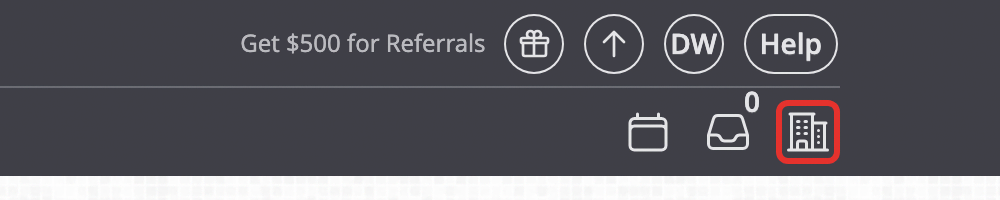
- Click the Admin Panel icon (the building) at the top right of the page.
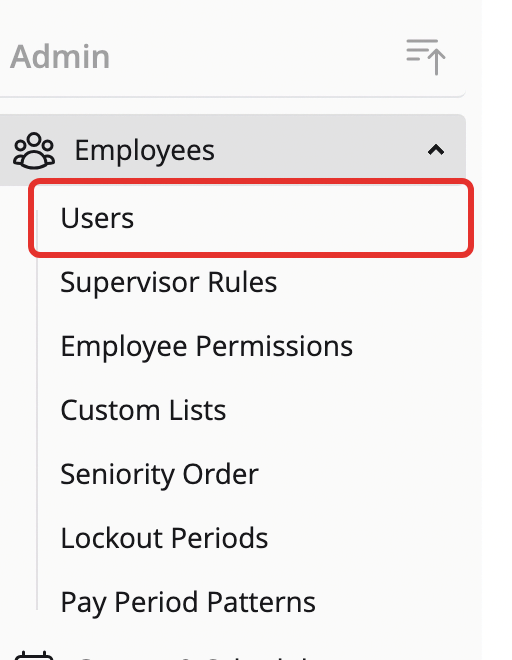
- Click Employees, then Users.
- Click + Add User.

- Enter the person's First name and Last name.
- Leave Is admin unchecked.
- Set Status to Hidden if the person does not work shifts at your agency. If you plan to limit which schedules they see (Part 3), leave it on Active for now.
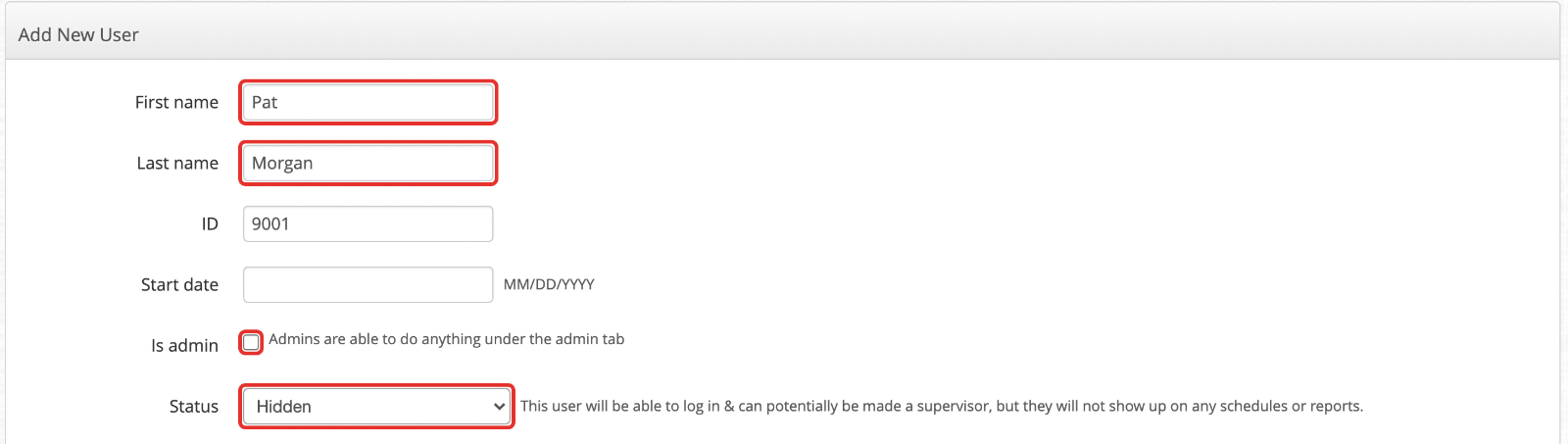
- Enter the person's Email.

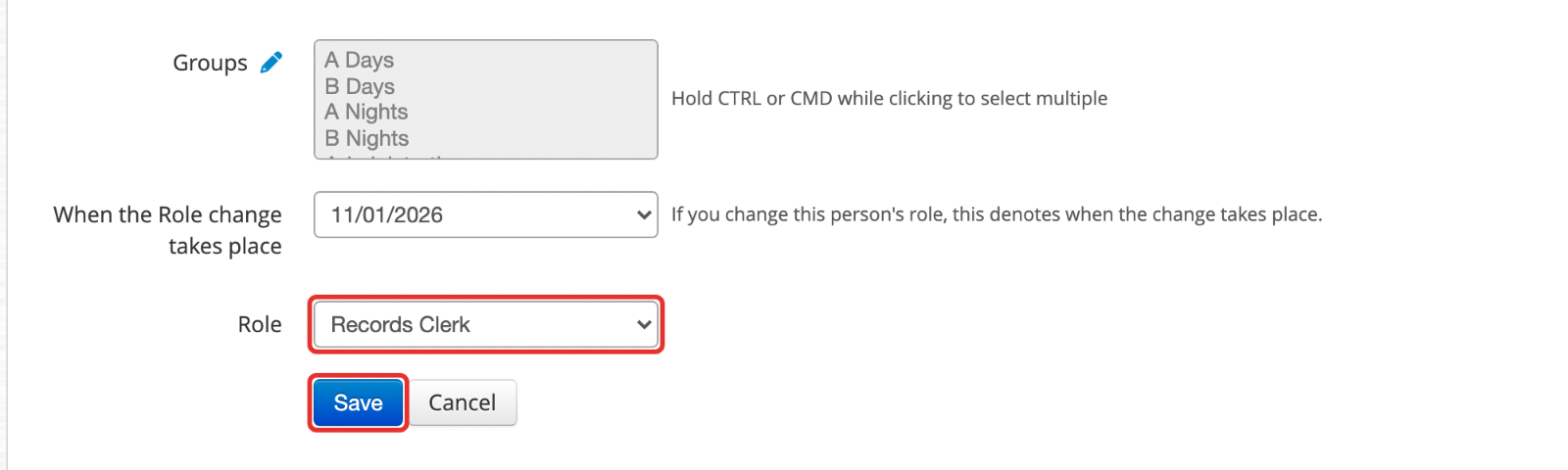
- Scroll to the bottom. In Role, choose a role that is not a supervisor role. The first role in the list is picked for you, so check it.
- Leave Groups empty.
- Click Save.
Part 2: Send the invitation
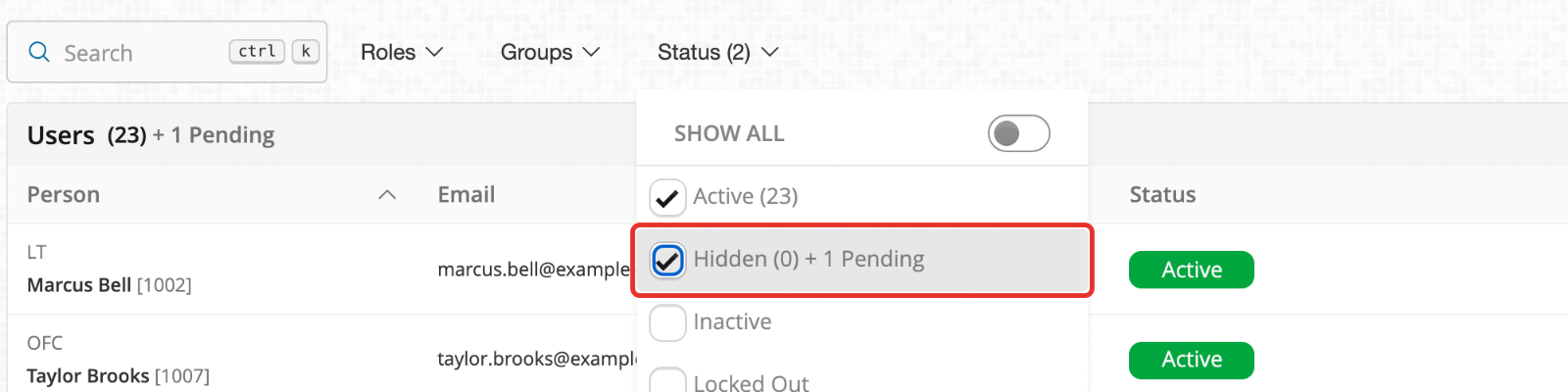
- On the Users page, click Status and check Hidden. Hidden users are left out of the list until you do this.
- Find the person. Their status says Created.
- Click Invite. Pace emails them a link to set a password and sign in.

Part 3 (optional): Limit which schedules they can see
Skip this part if the person may see every schedule.
- The person's status must be Active for this part. Hidden users are not listed on the next page. To change it, go to Users, click the three dots at the end of their row, click Edit, set Status to Active, and click Save.
- Open the Admin Panel, click Groups & Schedules, then Schedule Views.
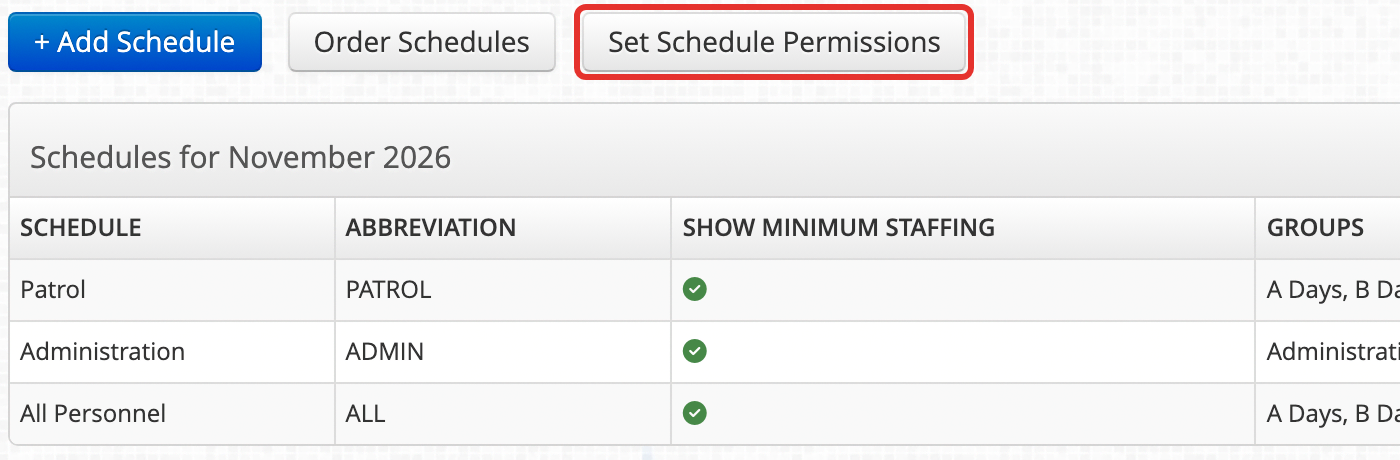
- Click Set Schedule Permissions.
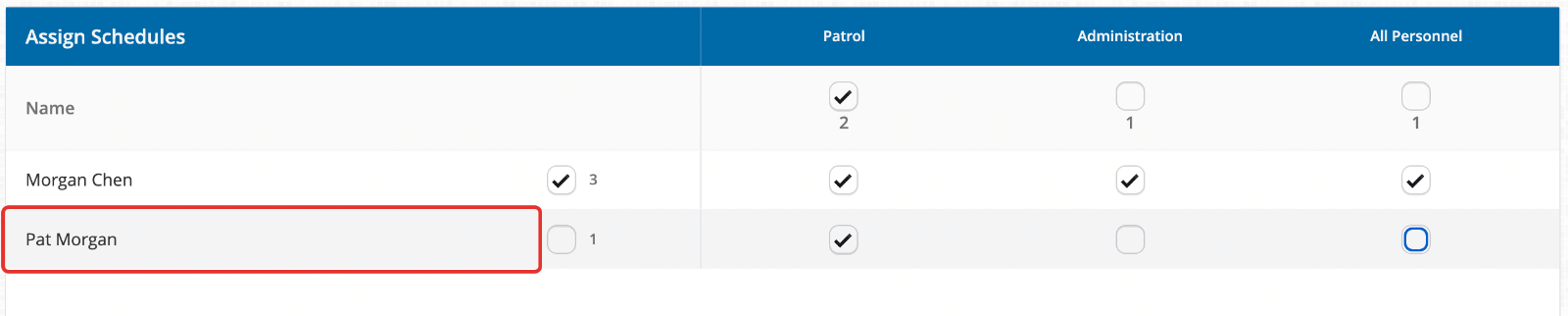
- Find the person's row. Each column is one schedule.
- Uncheck every schedule they should not see. Leave the ones they should see checked.
- Click Save.
- If the person should be Hidden, edit them again, set Status back to Hidden, and click Save.
Make an existing user view-only
If the person already has an account, remove everything that lets them make changes.
- Open the Admin Panel, click Employees, then Users. Click the three dots on their row, click Edit, uncheck Is admin, and click Save.
- Open the Admin Panel, click Employees, then Employee Permissions. Find the person, uncheck every box on their row, and click Save.

- Open the Admin Panel, click Employees, then Supervisor Rules. Remove the person as a supervisor from any rule that names them.
Confirm it worked
- The person can sign in and open the Daily Roster and the Grid.
- They do not see the Admin Panel icon.
- When they right-click someone else's shift, they do not get the options to edit it.
- If you set them to Hidden, their name is not on the Grid or the Daily Roster.
- If you limited their schedules, they only see the schedules you left checked.
Troubleshooting
- The person cannot open the Grid: check Site Settings, then Privacy & Security. If Hide Grid from Non-Supervisors is turned on, users without permissions cannot open the Grid.

- You can't find the person on the Users page: click Status and check Hidden.
- You can't find the person on Employee Permissions or Set Schedule Permissions: Hidden users are not listed there. Set their status to Active, make your change, then set it back to Hidden.
- The person never got the invitation: check the email address on their row, then click Invite again.
- The view-only user can claim extra shifts: their status is Active. Set it to Hidden.
FAQ
Can several people share one view-only sign-in?
Each sign-in uses one email address. For a shared screen, such as a dispatch desk, you can add one user with a shared mailbox as the email.
Will a Hidden user show up on reports or payroll exports?
No. Hidden users do not show on schedules or reports.
Can a view-only user see only their own schedule and not the Grid?
Yes. Turn on Hide Grid from Non-Supervisors in Site Settings. This applies to every user without permissions, not just one person.
Can a view-only user still send requests?
They can still open the request form on a shift, for example to offer to cover it. A request like that does nothing unless the shift's owner and a supervisor both approve it.

