


This article shows you how to let officers add notes to their own shifts, and how to control who can see shift notes.
It is written for site administrators. The last part shows officers how to add a note once it is turned on.
Prerequisites
- You are a site administrator.
Before you begin
- A shift note is a short note attached to one shift. On the Grid, a shift with a note has a small colored corner.
- Adding notes is not an Employee Permission, so you will not find it on that page. It is an ability in a Supervisor Rule.
- A Supervisor Rule says who can do what for whom. Here the rule says: officers can add notes for themselves. It does not make them supervisors, and it does not let them change shifts.
Steps
Part 1: Let officers add notes to their own shifts
- Click the Admin Panel icon (the building) at the top right of the page.

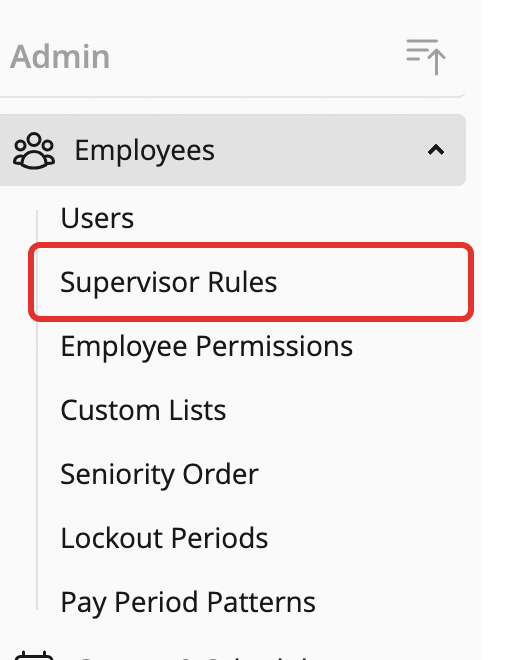
- Click Employees, then Supervisor Rules.
- Click Add New Supervisor Rule.

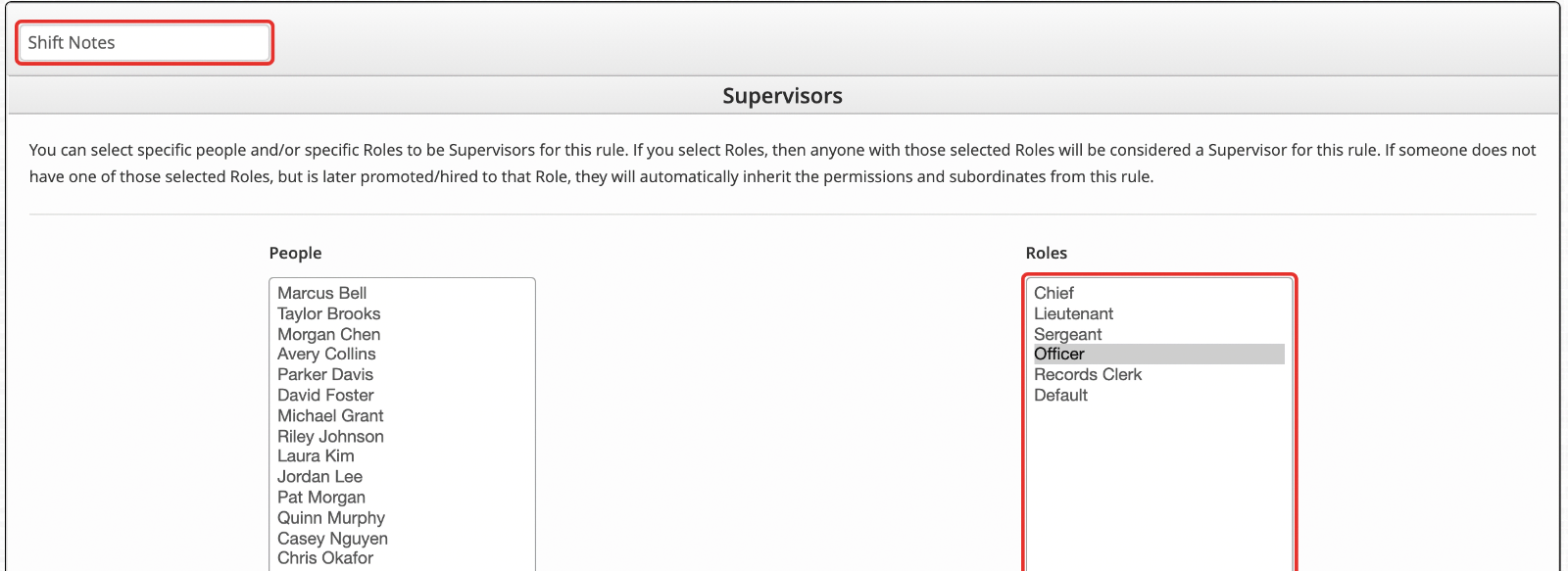
- Type a name in the box at the top, for example Shift Notes.
- Under Supervisors, choose who should be able to add notes. To include every officer, click Officer in the Roles list. To pick more than one role, hold Ctrl (Windows) or Command (Mac) while you click.
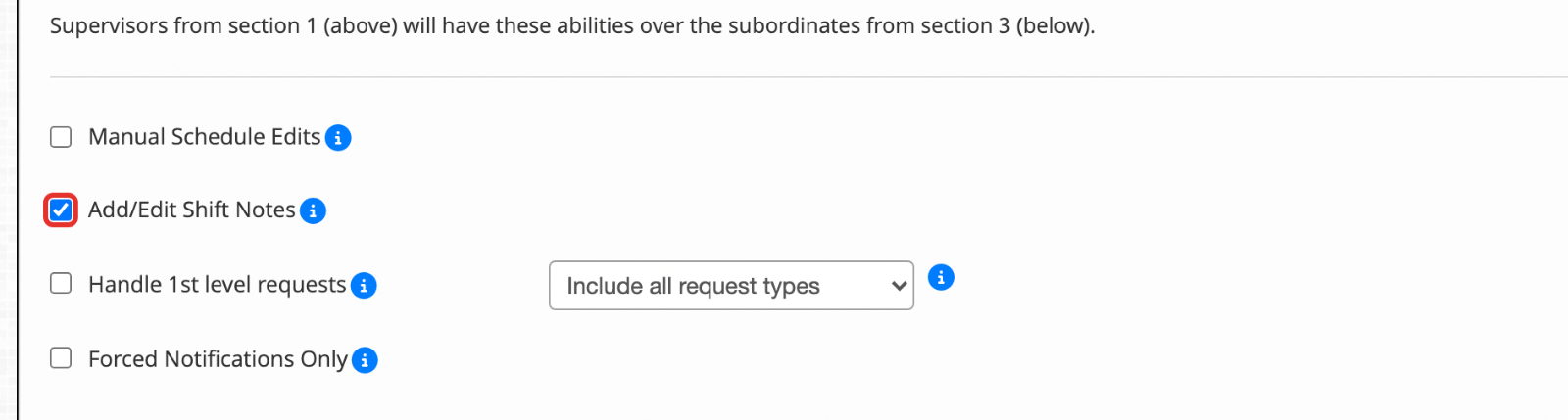
- Under Supervisor Abilities, check Add/Edit Shift Notes. Leave every other box unchecked.
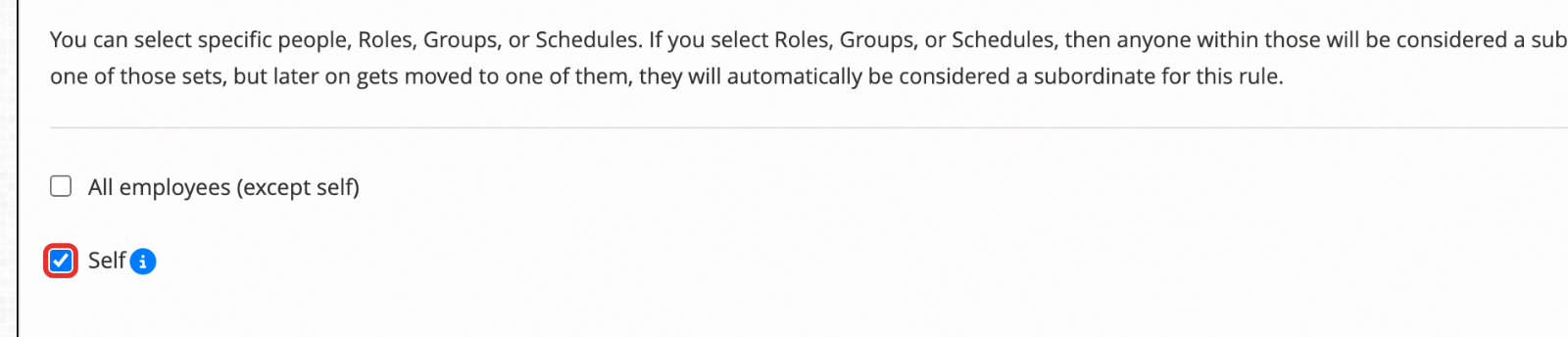
- Under Subordinates, check Self. Leave everything else in this section unselected.
- Scroll to the bottom of the page and click Create.
Important: Check only Self under Subordinates. If you check All employees (except self) or pick a group, officers will be able to add notes to other people's shifts too.
Part 2 (optional): Choose who can see shift notes
- Open the Admin Panel and click Site Settings at the bottom.
- Click Privacy & Security on the left.
- Find Shift Note Visibility and choose one:
- Everyone: all users can read shift notes.
- Permissioned Users Only: only users with permissions can read them.
- Click Submit at the bottom left.

How an officer adds a note
- Click Grid in the menu at the top of the page.
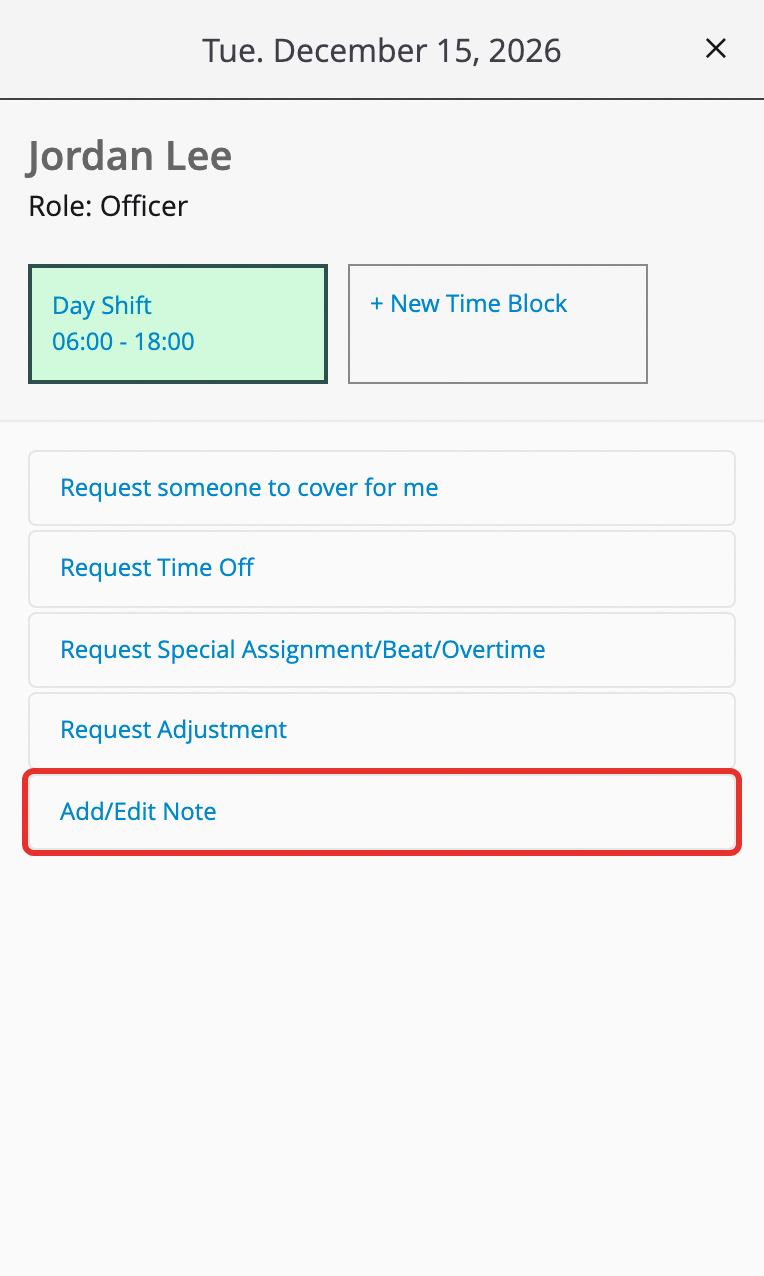
- Right-click your own shift. A panel opens on the right side of the page.
- Click Add/Edit Note.
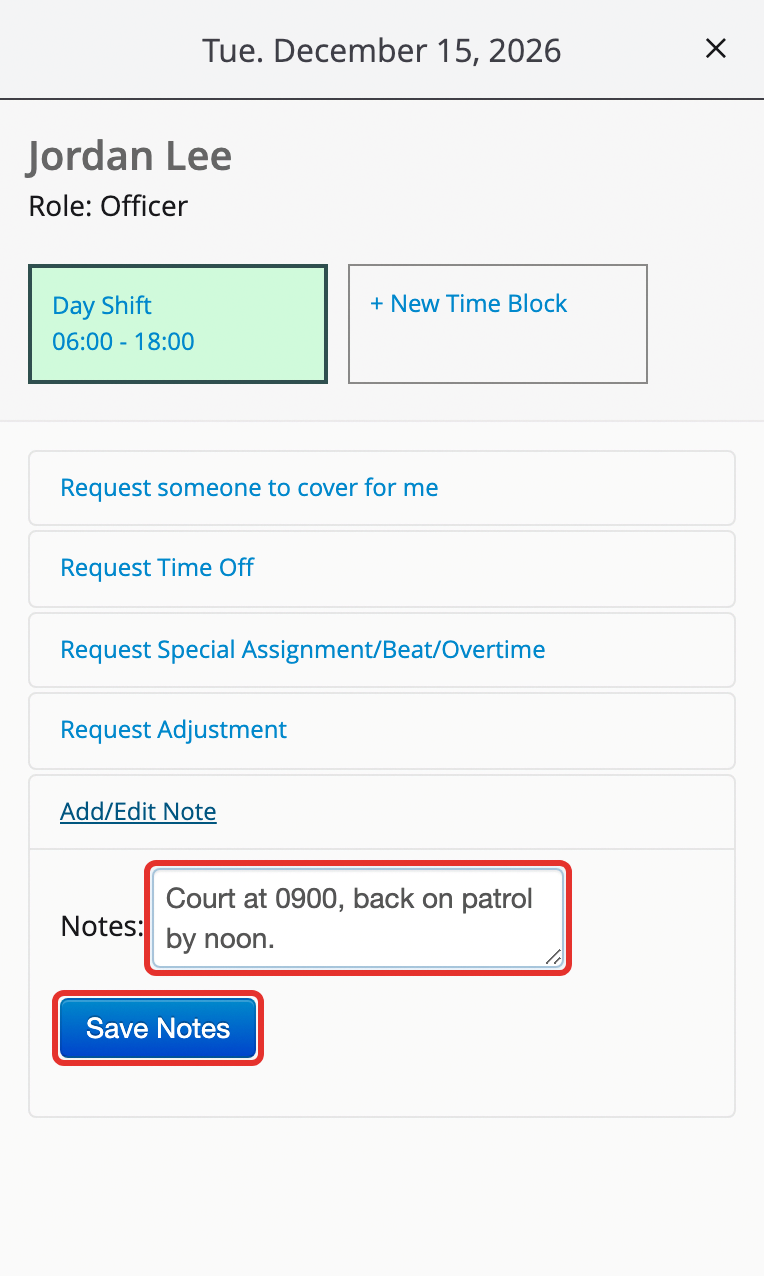
- Type the note in the Notes box.
- Click Save Notes.
Confirm it worked
- An officer right-clicks their own shift and sees Add/Edit Note at the bottom of the list.
- After a note is saved, the shift has a small colored corner on the Grid.

- When the officer right-clicks someone else's shift, Add/Edit Note is not there.
Troubleshooting
- An officer does not see Add/Edit Note: open the rule and check that their role (or their name) is selected under Supervisors, that Add/Edit Shift Notes is checked, and that Self is checked.
- Officers can add notes to other people's shifts: the rule has more than Self under Subordinates. Edit the rule and clear the other choices.
- Only one person should be able to add notes: under Supervisors, pick that person in the People list and leave Roles unselected.
- A new role cannot add notes: the rule only covers the roles you picked. Edit the rule and add the new role.
FAQ
Does this rule make officers supervisors?
No. It only lets them add and edit notes on their own shifts. They cannot change shifts or approve requests.
Do supervisors need this rule too?
No. Supervisors who can edit schedules can already add notes to the shifts of the people they supervise. Admins can add notes to any shift.
Can an officer edit or remove a note later?
Yes. Right-click the shift, click Add/Edit Note, change or clear the text, and click Save Notes.

