


 1167
1167
The Inventory Report shows when assets were assigned, who held them, and for how long. It helps you track asset history for auditing, accountability, and day-to-day operations.
Prerequisites
-
Asset features must be enabled for your site.
-
You must have permission to view Inventory reports.
Before you begin
-
Confirm that assets and asset types are configured in Admin Panel > Inventory.
-
Ensure you have the correct date range in mind before generating the report.
Steps
-
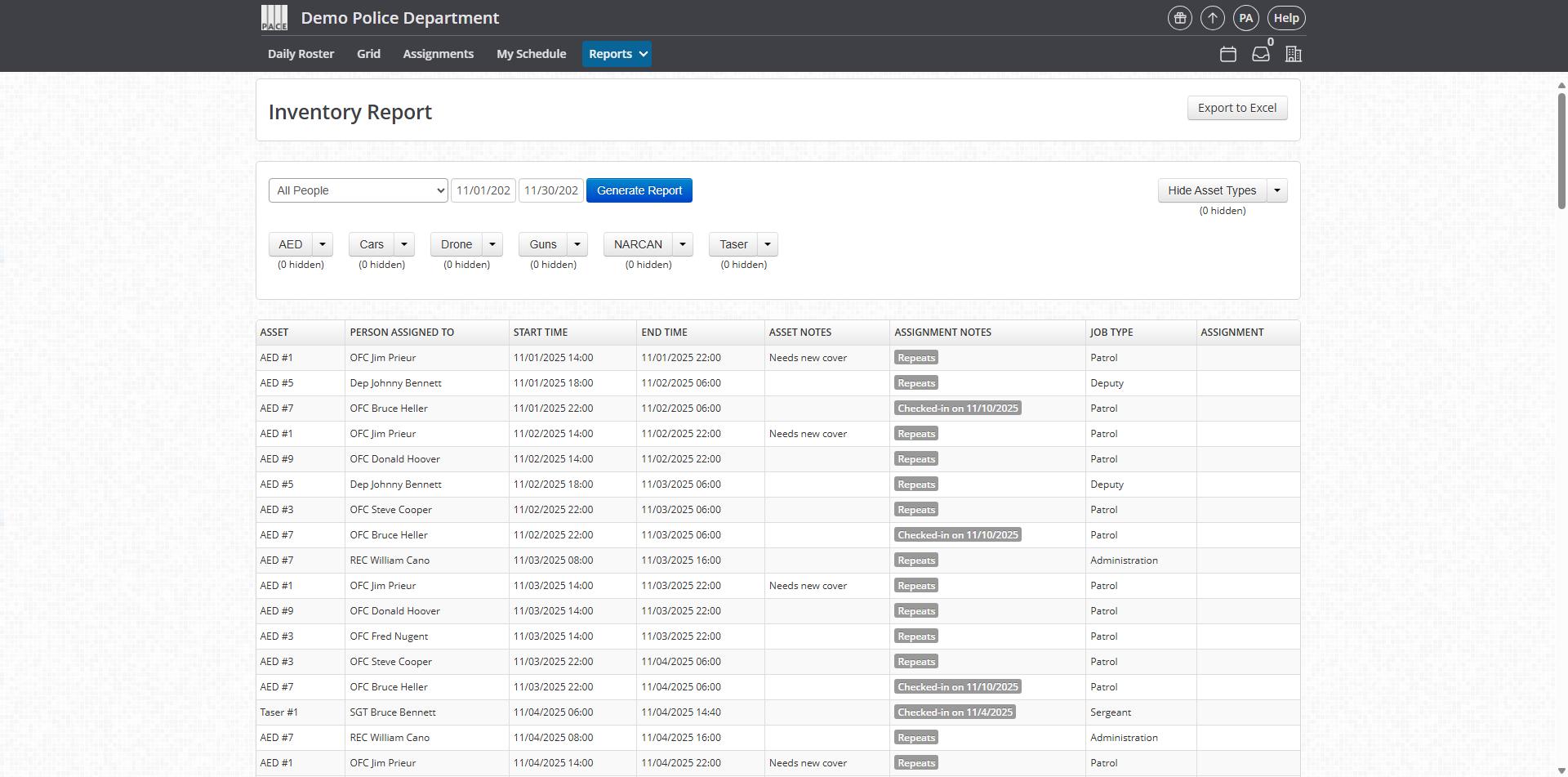
Go to Reports > Inventory Report.
-
Select the User or choose All Users to include the full asset history.
-
Select the Date Range you want to evaluate.
-
You may run the report for a day, week, month, year, or any custom range.
-
-
Click Generate Report.
-
The system displays all asset assignments matching your filters.
-
Filter the results
-
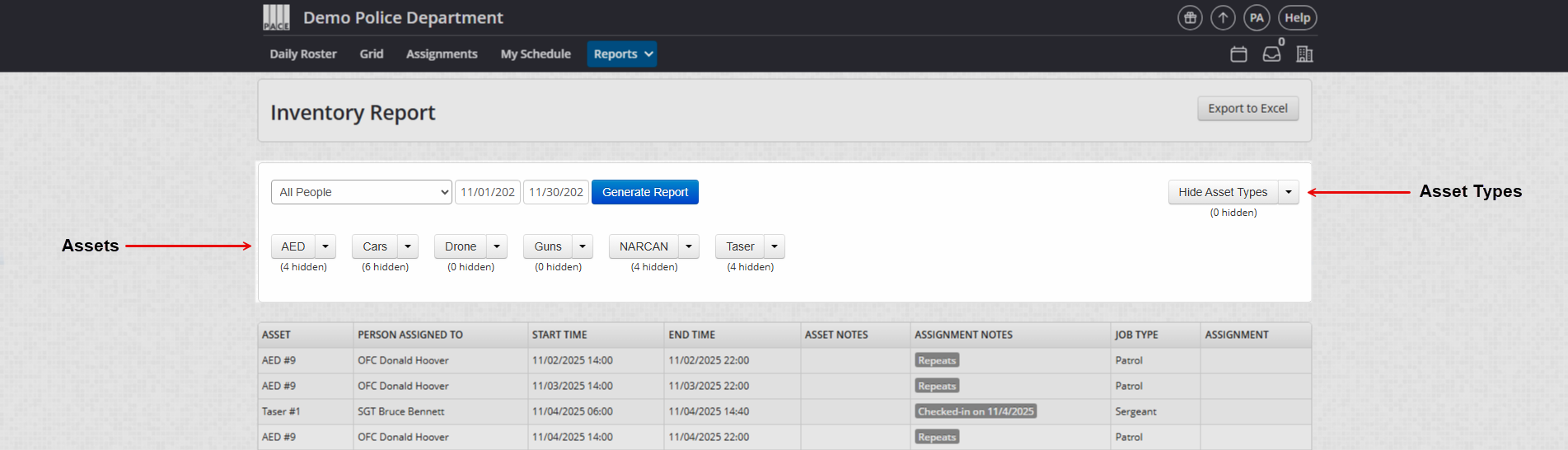
Use the on-screen filter buttons to narrow the results.
-
Filter by Asset
-
Filter by Asset Type
-
Review the report
-
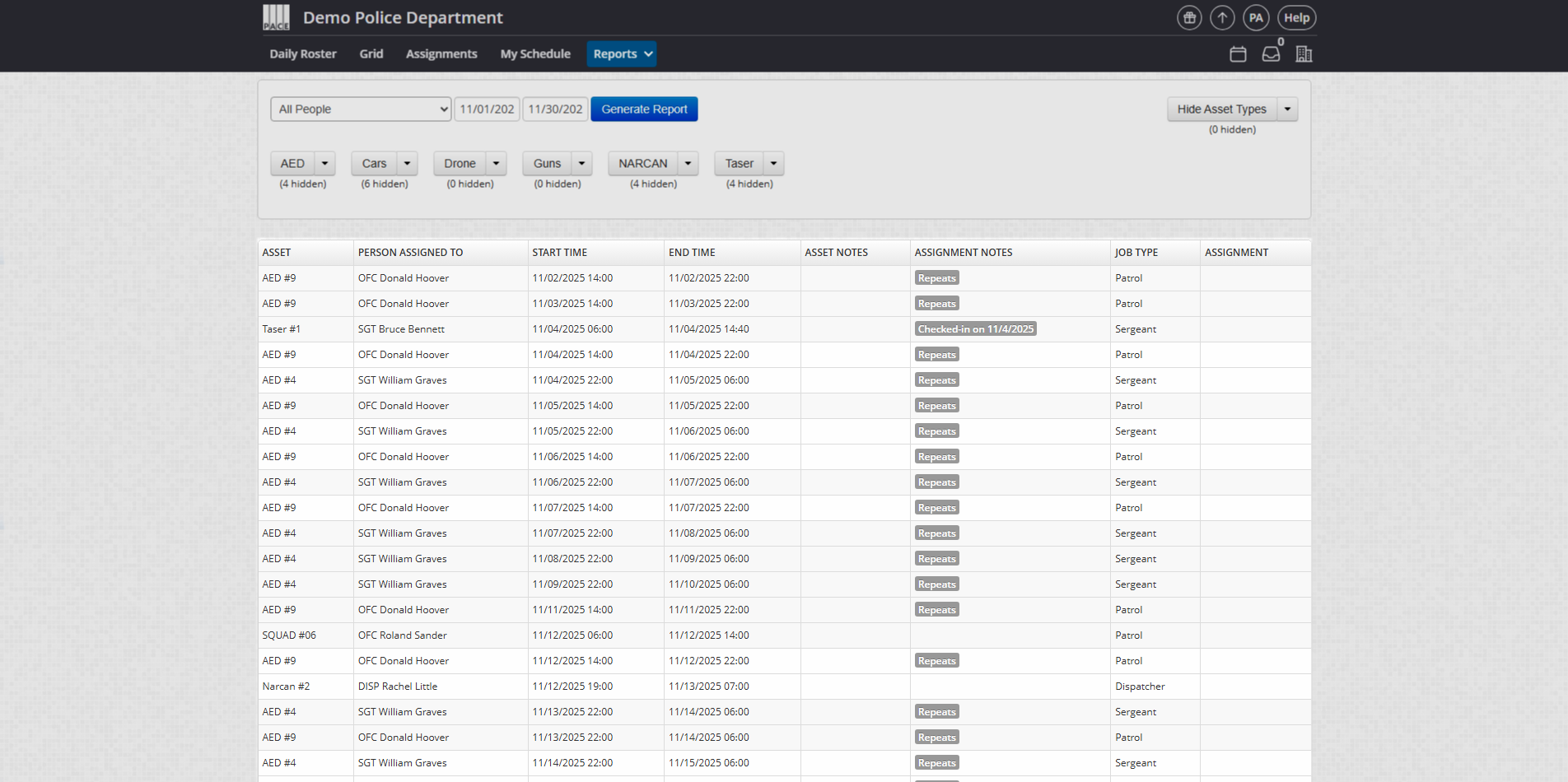
Review the details displayed for each record:
-
Asset name
-
User assigned
-
Assignment timeframe
-
Notes on the asset (if any)
-
Award method (Permanent, Repeated, or Single Check-Out)
-
Role held at the time of assignment
-
Assignment/Beat/Area/Sector (if applicable)
-
Export the report
-
Click Export to Excel to download the results.

Confirm it worked
-
The report table populates with asset records.
-
Exported Excel file contains the same rows displayed on screen.
-
Filters update the table immediately when applied.
Troubleshooting
-
“No records found” → Adjust the date range or verify that the user had assets assigned during that period.
-
Filters not showing expected assets → Clear all filters to reset the view. Try again.
-
Export is empty → Ensure the report has been generated before exporting.
-
Inventory feature missing → Contact an Pace Support to enable Inventory for your site.
FAQ
Can I see historical assignments for users who are no longer active?
Yes. As long as they existed during the selected date range, their asset history will appear.
Can I include multiple asset types at once?
Yes. All asset types appear by default until you apply filters.
Do deleted assets appear in this report?
No. Only active assets and historical records tied to them appear.
Does this report include permanent assignments?
Yes. Permanent, repeated, and single check-outs are all included.

