


 554
554
Each user can update certain personal details and choose how Pace Scheduler behaves when they log in. The options visible in your profile depend on your role. Admin Panel users see additional configuration fields; Basic Users see a simplified version with only their personal information and display preferences.
This article covers what all users will see, with notes about Admin-only fields where relevant.
Prerequisites
-
You can log in to Pace Scheduler.
-
Your role determines which profile fields you can edit.
-
Some fields may be locked because they are managed only by Admin Panel users.
Before You Begin
-
Confirm you know which email and phone number you want to use for system messages.
-
If something is incorrect but not editable, contact your site administrator.
-
Understand that your department may use Custom Profile Fields (e.g., Payroll ID, Skillset); these appear only for Admin/Supervisor roles, not for standard users.
Steps
1. Open Your Profile
-
Log in to Pace Scheduler.
-
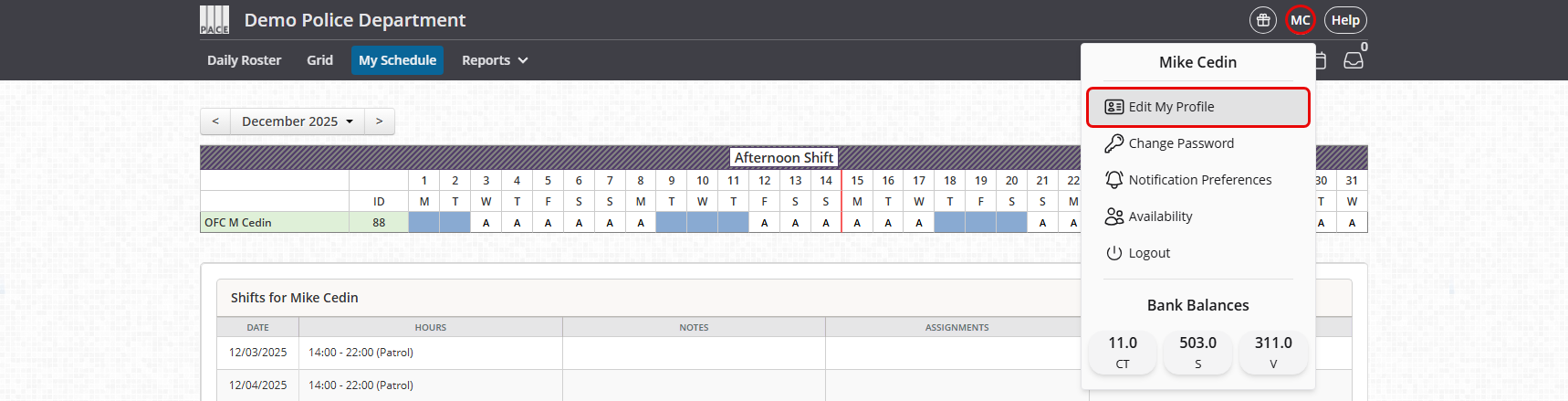
Click your name or initials in the upper-right corner.
-
Click Edit My Profile.
You will now see a page similar to the screenshot below, depending on your permissions.
2. Standard Users: Fields You Can Edit
When logged in as a regular user, you will see only your personal information and display preferences:
Editable Personal Information
-
First name
-
Last name
-
Title (if site allows editing)
-
Address (Line 1, Line 2, City, State, Zip code)
-
Cell phone
-
Work phone (if applicable)
-
Home phone
-
Email
-
Second email
Note: Text notifications are sent to both your cell phone and work cell phone if both are entered.
3. Standard Users: Display Preferences
These settings control what you see when you log in and how your schedule loads.
Initial View After Login
Choose what page you land on immediately after signing in, such as:
-
Grid
-
Daily Roster
-
My Schedule
Default Calendar Period
Controls which period loads when viewing your calendar:
-
Current Period
-
Most Recently Viewed Period
Default Schedule
Choose which schedule view appears automatically when you visit your schedule:
-
Most Recently Viewed Schedule
-
Any other schedule view made available by your department
Default Availability View
Determines how your availability page opens (most commonly Grid).
HUD Hotkey Behavior
Controls how the keyboard shortcut behaves for revealing the HUD (Heads-Up Display):
-
Toggle (press to show/hide)
-
Press & Hold (show only while held)
4. Save Your Changes
-
Scroll to the bottom of the page.
-
Click Save.
-
Confirm no error messages appear.
Admin & Supervisor Note: Additional Fields
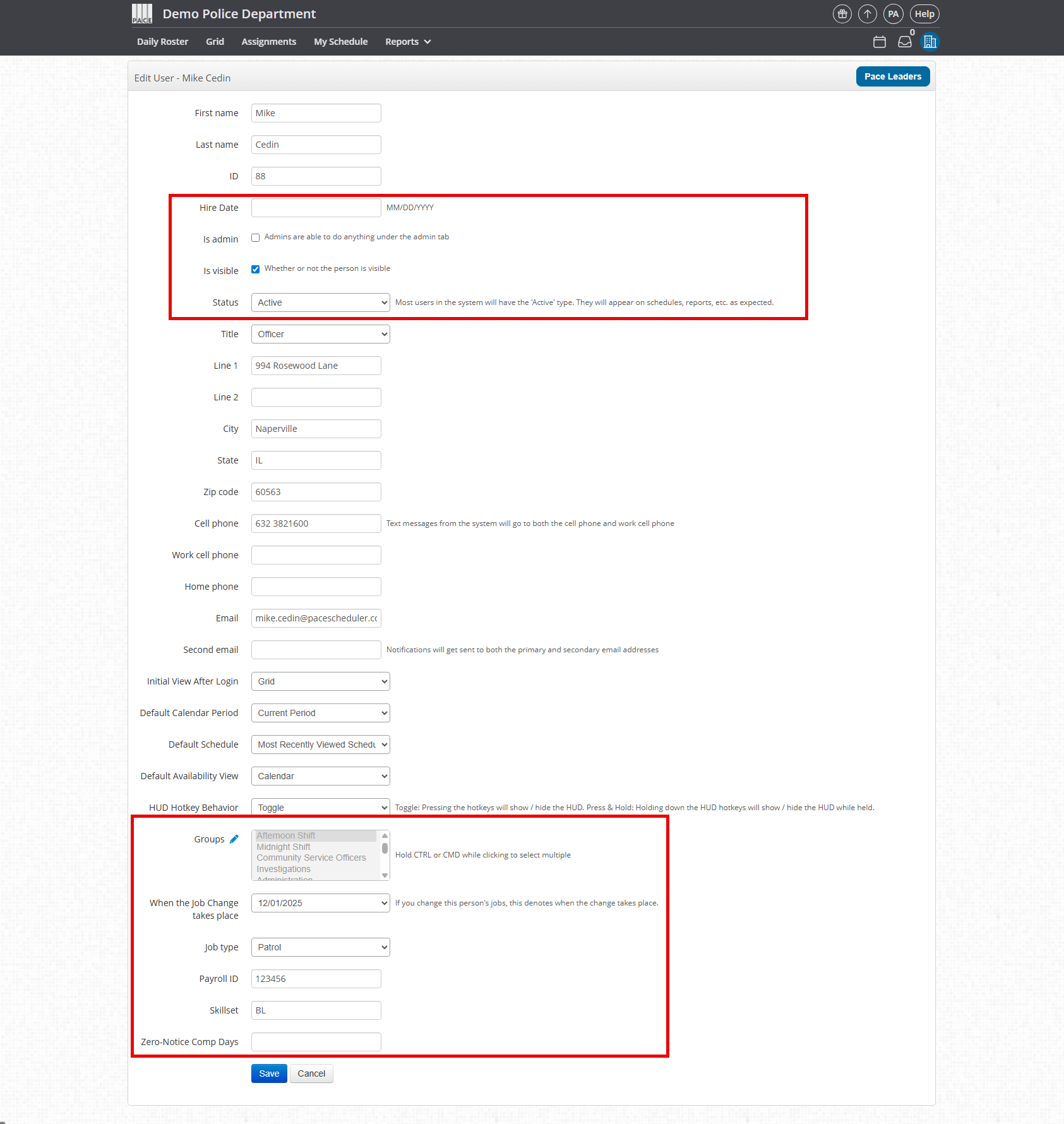
Admin Panel users will see additional fields not visible to standard users, including:
-
Status
-
Skillset (Custom Profile Field)
-
Payroll ID (Custom Profile Field)
-
Zero-Notice Comp Days (Custom Profile Field)
-
Groups
-
Role
-
Default Availability View
-
Default Schedule
-
Default Calendar Period
These fields do not appear for Basic Users when they view their own profile.
Confirm It Worked
-
Log out and back in to ensure your Initial View After Login loads correctly.
-
Navigate to My Schedule to confirm your Default Schedule setting.
-
Open your Calendar and verify the period matches your Default Calendar Period.
-
Review your contact details to ensure your saved updates appear correctly.
Troubleshooting
"I do not see the same fields as an Admin."
This is expected. Standard users see a simplified profile.
"Some fields appear grayed out."
These are controlled by your department and cannot be changed by regular users.
"My initial view didn’t change."
- Make sure you clicked Save.
- Sign out and sign back in.
- Try clearing your browser cache.
"I need to update a field I cannot edit."
Contact a user with Admin access.
FAQ
Why do I see fewer fields than my supervisor?
Field visibility is role-based. Admins manage employment details and custom profile fields.
Why don’t I see Payroll ID or Skillset fields?
These are Custom Profile Fields visible only to Admin Panel users.
Do my display settings affect anything for other users?
No. All display preferences are user-specific.
Why does the HUD Hotkey Behavior option exist?
It allows users to choose how they want the keyboard shortcut to function when toggling the HUD.
Can I remove my second email?
Yes—unless your department requires it.

