


This article shows you how the Inbox works. The Inbox is the page where supervisors and admins approve and reject requests. It replaces the Pending Requests page.
It is written for supervisors and admins. Other articles cover approving and rejecting requests, and filtering and sorting the Inbox.
Prerequisites
- You can approve or reject requests for at least one employee (you are an admin, or a supervisor in a Supervisor Rule).
- The Inbox is turned on for your site.
Before you begin
- Each request shows as a card. A card has the person, the date, the kind of request, and the Approve and Reject buttons.
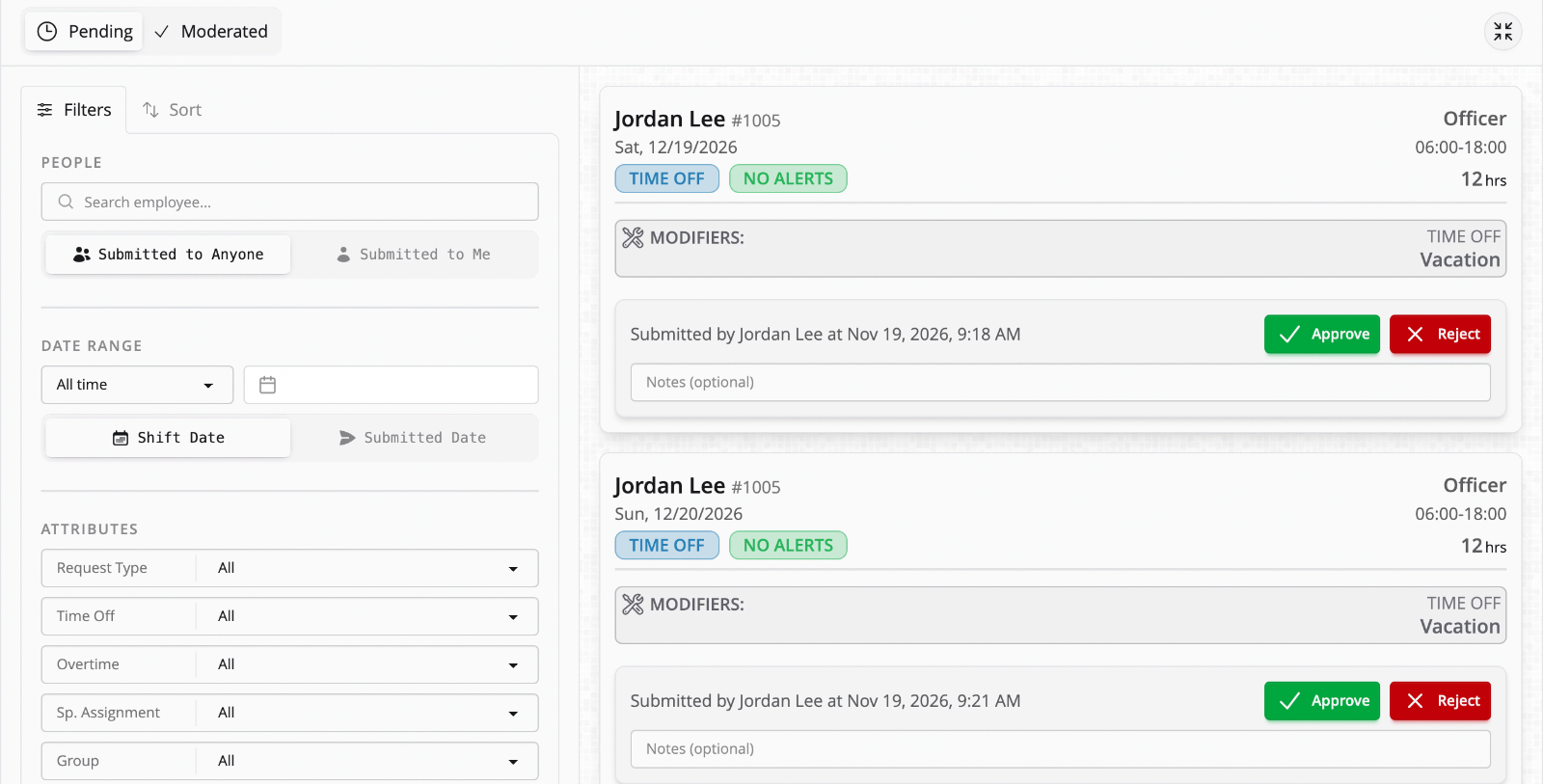
- The Inbox has two tabs. Pending lists requests waiting for an answer. Moderated lists requests that have already been approved, rejected, or canceled.
- The same requests are waiting as before. Only the page you use to answer them has changed.
Steps
Open the Inbox
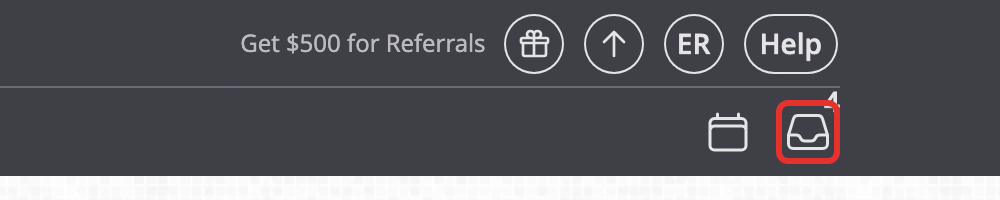
- Click the Inbox icon (the tray) at the top right of the page. The number on it is how many requests are waiting.
The Inbox opens on the Pending tab. Filters are on the left and the request cards are on the right.
Switch between Pending and Moderated
- Click Pending to see requests that still need an answer.
- Click Moderated to see requests that were already handled.

Read a request card
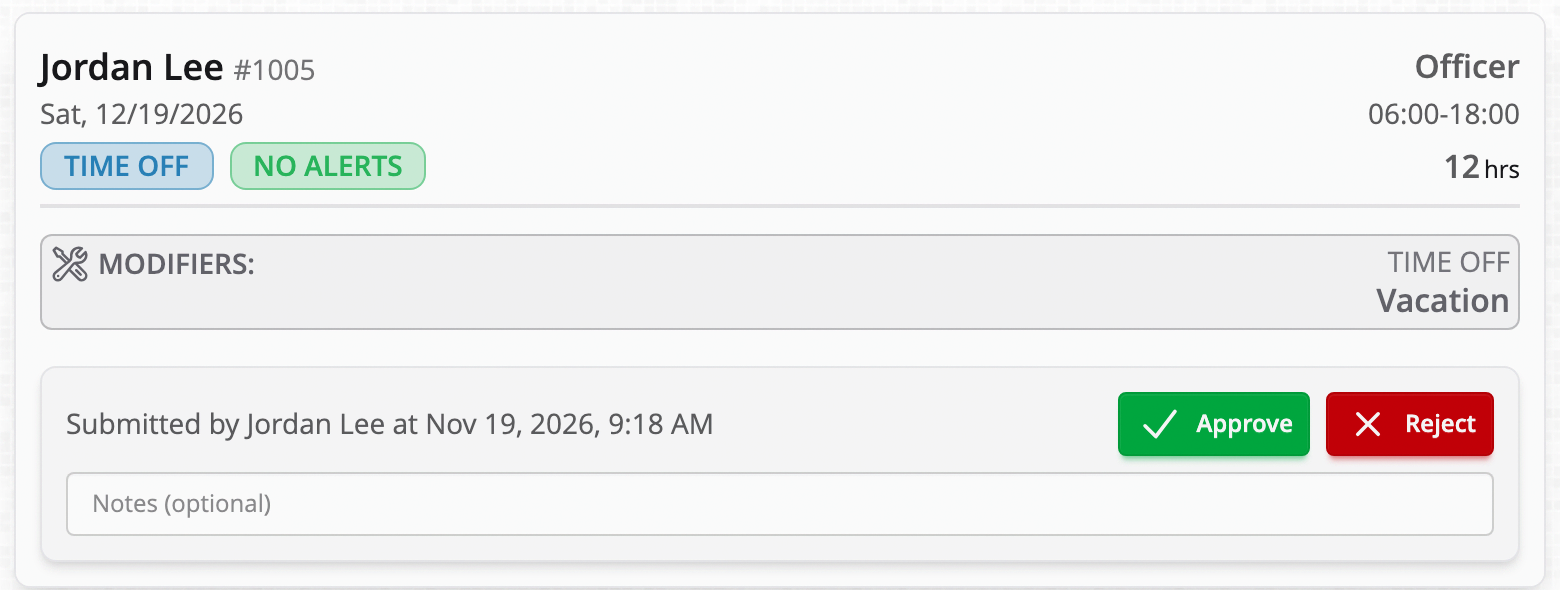
- Top left: the person's name and ID, and the date of the shift.
- Top right: the person's role, the hours of the shift, and how many hours the request covers.
- Blue badge: the kind of request, such as Time Off or Special Assignment.
- Second badge: alerts about the request. No Alerts means nothing was flagged.
- Modifiers: the exact type, such as Vacation or Court.
- Comment: if the person typed a comment with the request, it shows in quotes under Modifiers.
- Bottom: who submitted the request and when, the Approve and Reject buttons, and a Notes box.
Collapse or expand the cards
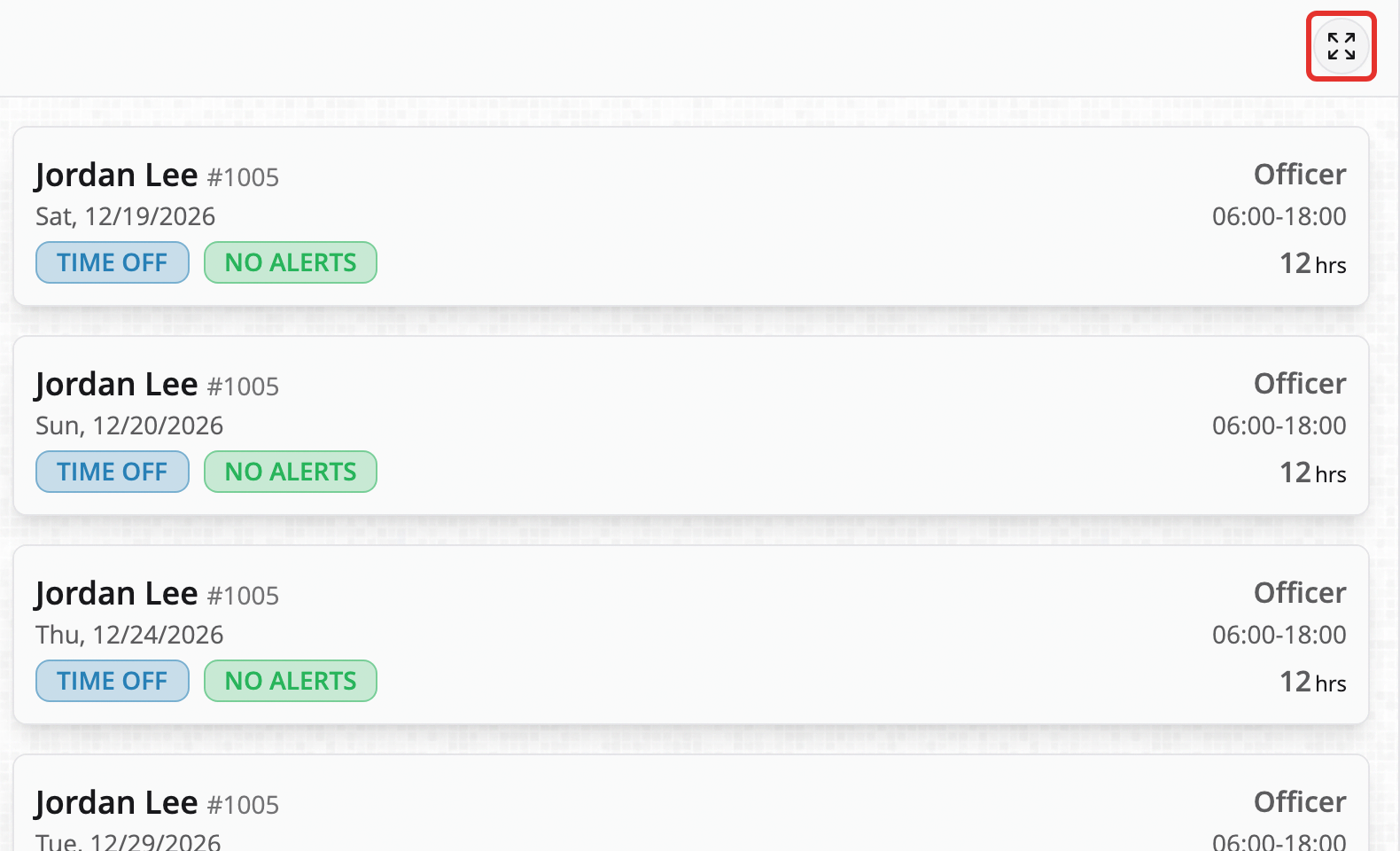
- Click the button with four arrows at the top right of the Inbox.
Collapsed cards show only the top part, so more requests fit on the screen. Click the button again to expand them and get the Approve and Reject buttons back. The Inbox remembers your choice.
Confirm it worked
- The Pending tab lists a card for each request waiting on you.
- When nothing is waiting, the Inbox says No pending requests to review.
Troubleshooting
- You still see the old Pending Requests page: the Inbox is not turned on for your site yet. Contact Pace Support. Sites that use the older Calendar View stay on Pending Requests.
- You don't see Approve and Reject on a card: the cards are collapsed. Click the four-arrow button at the top right to expand them.
- A request you expected is not listed: a filter may be hiding it. A blue dot on the Filters tab means a filter is on.
- You don't see the Inbox icon: your account cannot approve requests for anyone. Ask a site administrator.
FAQ
Did any pending requests get lost in the switch?
No. The Inbox shows the same requests the Pending Requests page did.
Where did Archived Requests go?
Handled requests are on the Moderated tab.
Can I still add a note when I approve a request?
Yes. Every card you can approve or reject has a Notes box, and the note is saved whether you approve or reject.

