


This article shows you how to approve or reject a request in the Inbox, how to add a note, and how to check what was decided afterward.
It is written for supervisors and admins. If you are new to the Inbox, read How the Inbox works first.
Prerequisites
- You can approve or reject requests for the employee (you are an admin, or a supervisor with Handle 1st level requests over them).
Before you begin
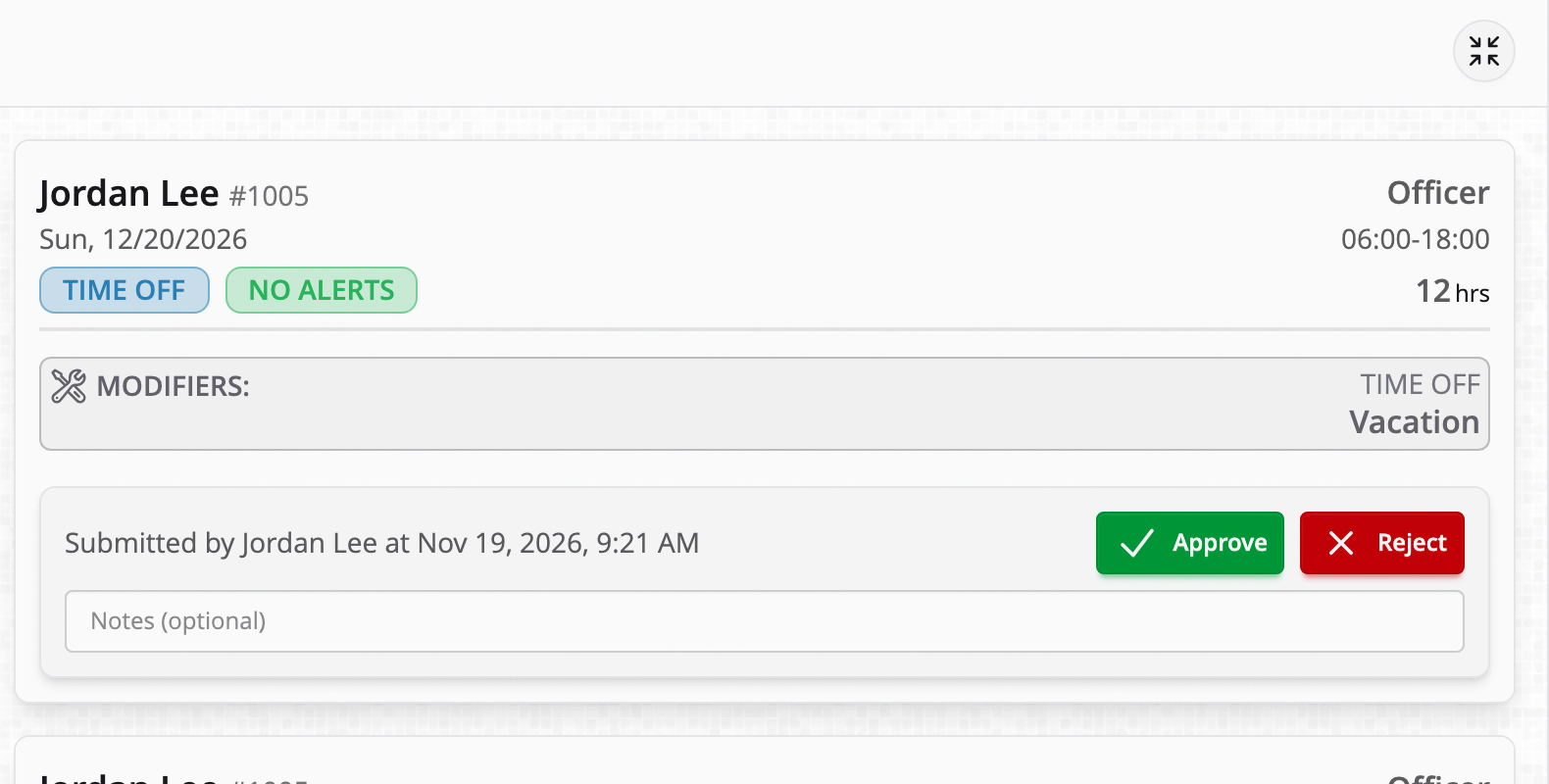
- You can add a note on any decision, approval or rejection. The box says Notes (optional).
- Some sites require a note when rejecting. If yours does, the box says Notes (required for rejections).
- A decision takes effect right away. An approved time off request goes straight onto the schedule.
Steps
Approve a request
- Click the Inbox icon at the top right of the page.
- Find the request's card on the Pending tab.
- Optional: type a note in the Notes box on that card.
- Click Approve.
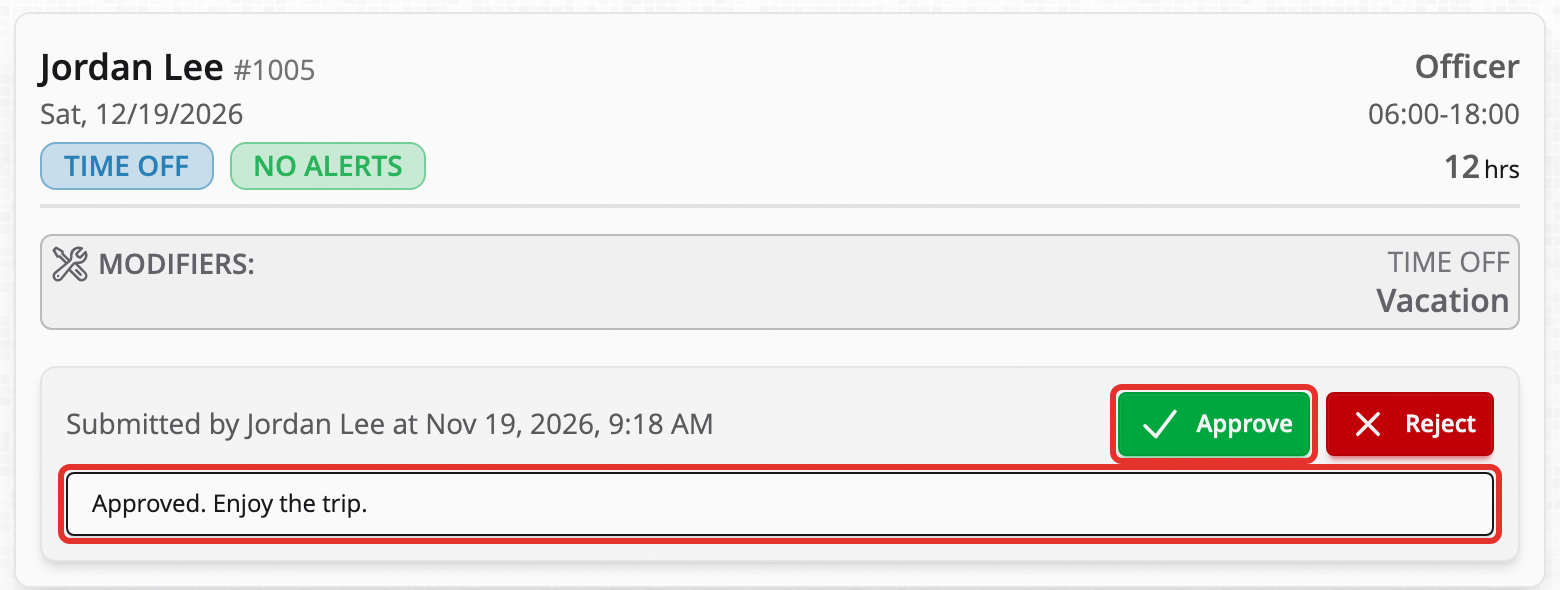
The card leaves the Pending tab.
Reject a request
- Find the request's card on the Pending tab.
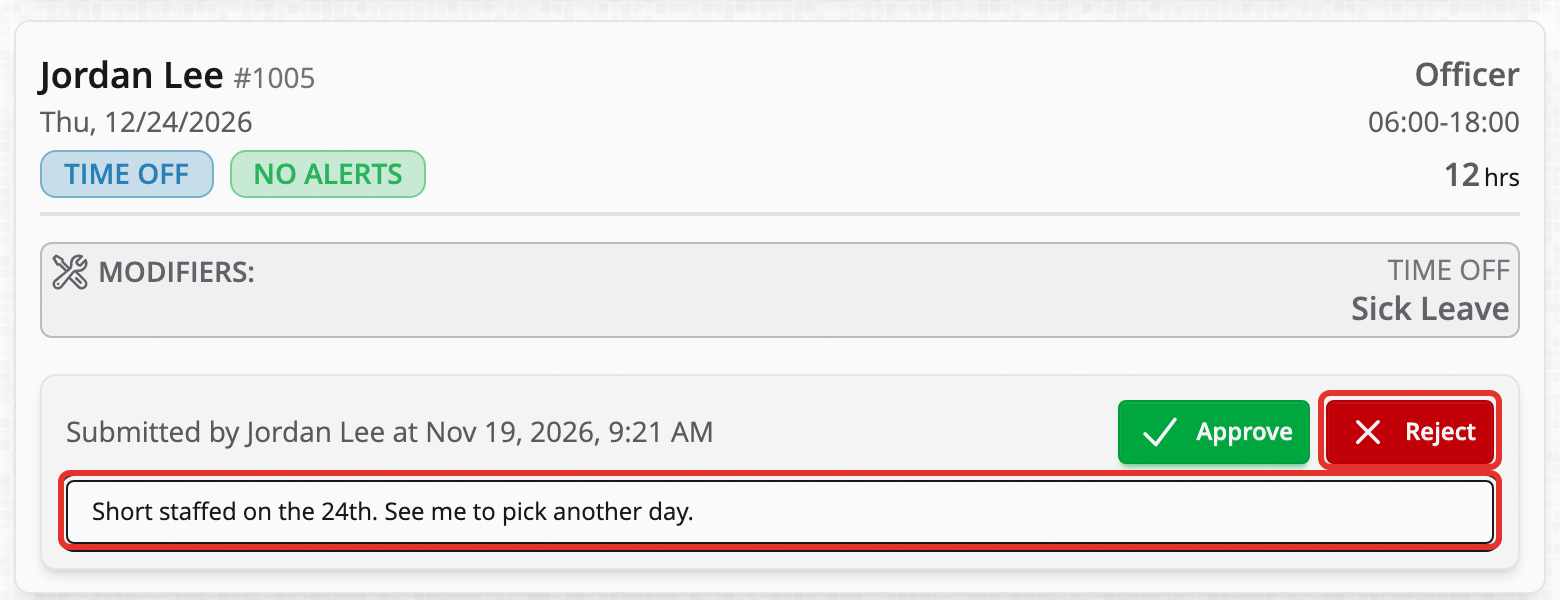
- Type the reason in the Notes box. This is optional unless the box says it is required.
- Click Reject.
Check what was decided
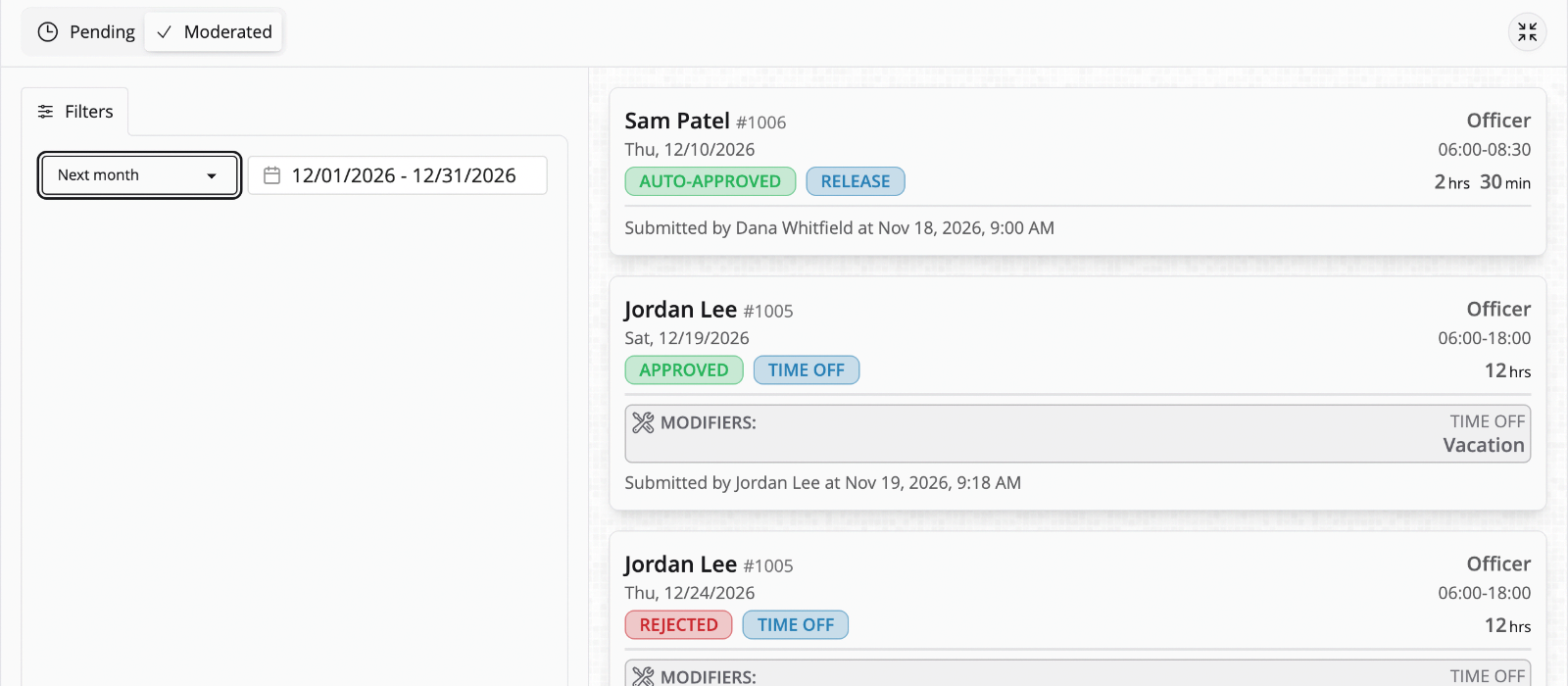
- Click the Moderated tab.

- Choose a date range on the left. It starts on This month, by the date of the shift. For a request about next month, choose Next month.
Each card shows the result as a badge, such as Approved, Rejected, Cancelled, or Auto-Approved.
Confirm it worked
- The card is gone from Pending and shows on Moderated with its result.
- For an approved request, the Grid shows the change on that day.
Troubleshooting
- You don't see the Notes box or the buttons: the cards are collapsed. Click the four-arrow button at the top right of the Inbox to expand them.
- You can't reject without a note: if the box says Notes (required for rejections), your site requires one. Type a note first.
- You can't find a request on Moderated: the date range goes by the date of the shift, not the day you answered. Pick the range that includes the shift's date.
- You approved or rejected the wrong request: a decision cannot be undone from the Inbox. Change the schedule on the Grid, or have the employee submit the request again.
FAQ
Can I add a note when I approve, not just when I reject?
Yes. The Notes box is on every card you can decide on, and it works for both.
What does Auto-Approved mean?
The change was entered by someone who is allowed to edit the schedule directly, so it did not need an answer.
Can I answer several requests at once?
Each card is answered one at a time. Collapse the cards to scan the list, then expand them to answer.

